1. Start with a reference that shows the product
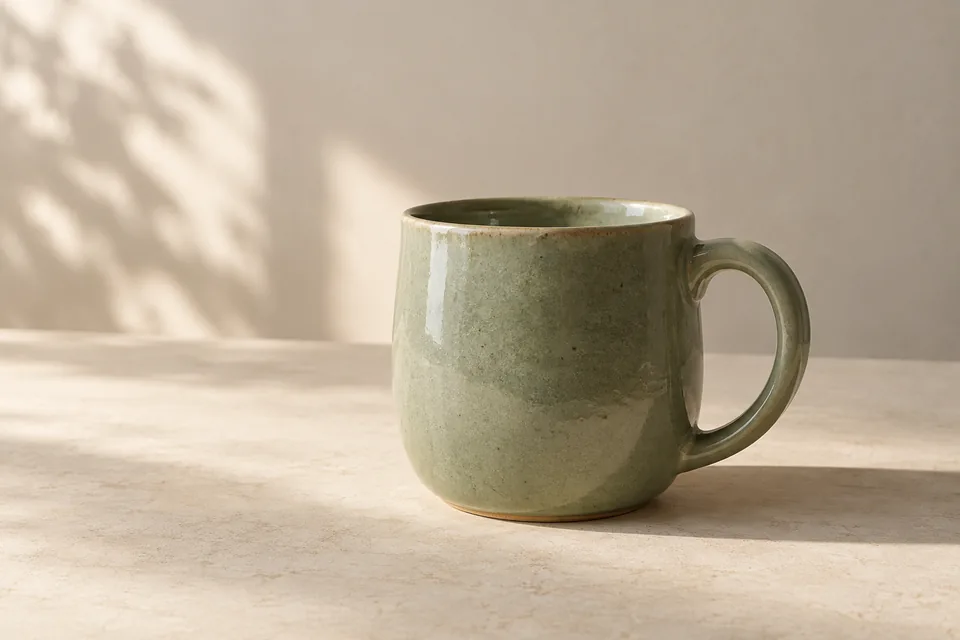
Open the infinite canvas and upload, paste or drag in a picture, or add one from your library. Choose a photo that clearly shows the rim, handle and glaze. Add another angle only if an important feature is hidden. You can pass up to six reference images to the assistant at a time.
Keep the original on the left of the canvas. Do not replace it with the first generated result: each later scene should return to the same source, limiting gradual changes to the product. Our reference is an original AI example; use an authorized real product photo for your own work.
2. Arrange a small moodboard with clear roles
Manually arrange three areas: Original, Visual direction and Selected results. Add a note beside the original: Preserve the shape, handle, glaze and proportions. Add two or three style references, each labeled with a narrow role such as color only, lighting only or composition only.
For this example, use cream, sage and a little lavender, soft side lighting and quiet lifestyle photography. Select the relevant pictures and notes, then choose “Send to assistant.” Notes communicate your requirements; arranging the board remains a manual canvas action. See the AI moodboard guide for more ways to organize references.
3. Generate one scene and check the subject
Select the original mug and copy the whole prompt. Begin with one desk scene before exploring several directions.
Use my selected ceramic mug reference to generate one vertical 4:5 lifestyle product image.
Preserve the original body silhouette, rim, rounded handle, speckled sage-green glaze, proportions and visible details. Do not replace the mug or add branding or text.
Place this mug on a quiet pale-wood desk, with soft morning light from the left, a cream wall behind it and just one closed, plain book beside it. Make the mug the sharpest subject, with consistent lighting and natural contact shadows.
Keep the scene restrained, realistic and spacious. Do not add another mug, elaborate decorations or unnecessary hands.
Check the rim, handle attachment, glaze and proportions before finishing.
Open the result at full size and compare it with the source. If the handle has changed, correct the product before proceeding. An attractive background does not establish reference fidelity.
4. Make three images with distinct purposes
Keep the original selected and open “Generate a content set.” Choose a suitable purpose such as social media, set the count to 3, and paste these additional requirements. Each output should use the selected original independently, not inherit the previous generated image.
Create three separate social-media product images of the same ceramic mug, each vertical 4:5. Do not combine them into a grid or collage.
Use my selected original mug as the subject reference for all three. Preserve its silhouette, rim, handle, sage glaze, speckled texture and proportions. Use consistent natural photography, soft light and a cream-and-sage palette, with no logos or text.
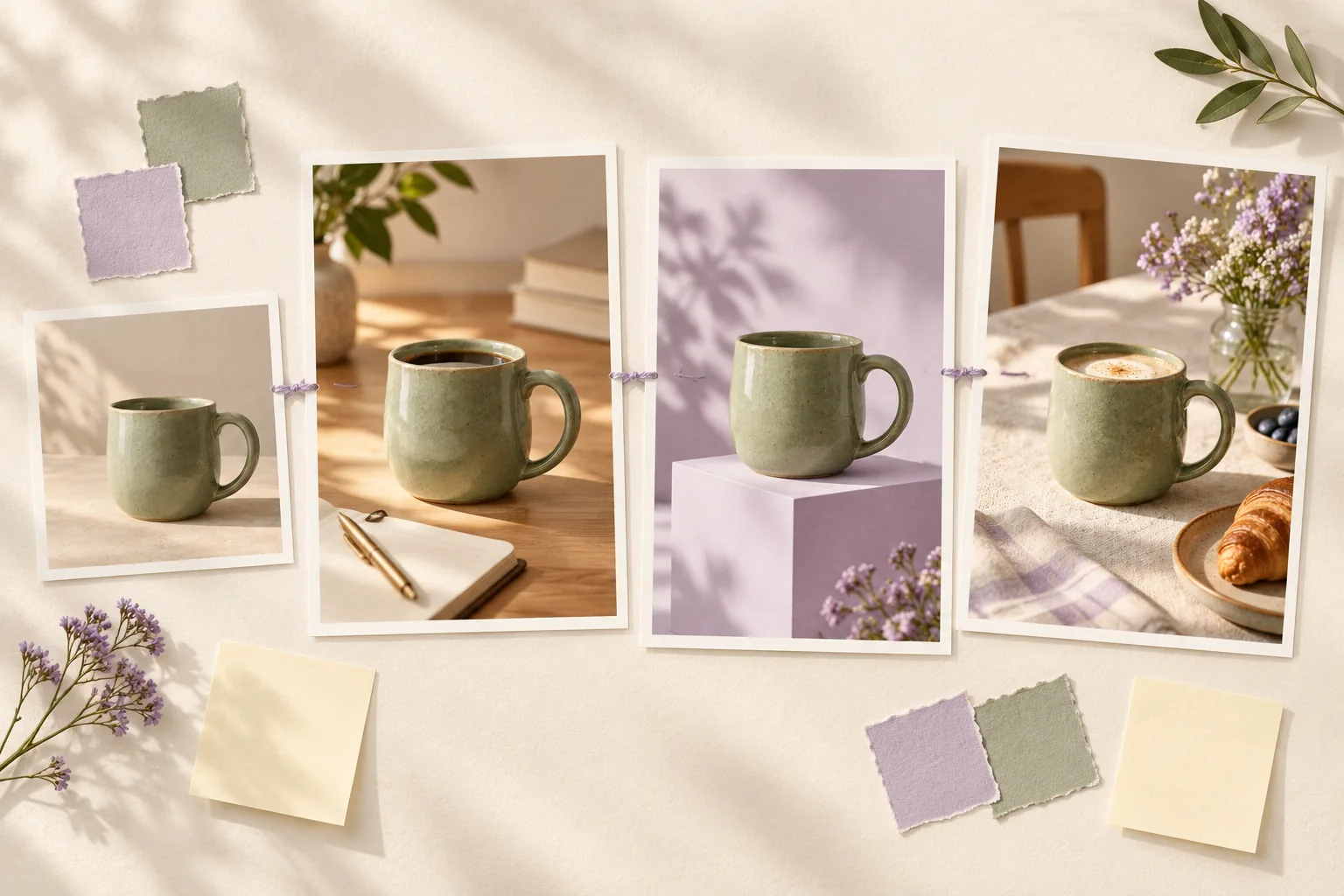
Image 1: a pale-wood desk in morning light, emphasizing everyday use.
Image 2: a clean pale-lavender pedestal with side light, emphasizing the silhouette.
Image 3: a breakfast table with light linen and a little bread; the mug remains the sole hero.
Show the complete mug and plausible contact shadows in each image. Do not alter the product structure to make the set look consistent.
Arrange the results together. Compare product identity first, then color and lighting. The illustration below explains the one-subject, three-scene approach; inspect your actual outputs individually.
5. Change one variable at a time
If only the second background is too busy, select the original and that result. Assign a separate role to each attachment, then request a background-only revision.
Attachment 1 is the original product. Attachment 2 is the result to revise. Generate one corrected image.
Use attachment 1 for product identity, silhouette, handle, glaze and proportions. Keep the camera angle, mug position and pedestal layout from attachment 2.
Change only the background to an even pale lavender. Remove unnecessary decorations and retain natural contact shadows.
Do not add text, alter the mug, change the composition or regenerate the other two images in the set.
This gives you something concrete to check. If both color and composition need work, confirm one change before requesting the next.
6. Keep the source and export the chosen layout
Align the selected outputs and add short notes explaining their use. PNG export includes selected nodes when there is a selection; with no selection, it exports the canvas content. Check the scope before sharing so you do not include drafts, internal notes or unused references.
The export is an image, not a PSD with independently editable layers. Download individual results when you need separate files. Canvas images are retained for 30 days from their first addition; reusing them does not restart that period. Back up important originals and outputs separately.
7. Finish with a short review
- Is it still the same mug in every image, especially the handle, rim and glaze?
- Did every output use the original instead of accumulating changes from earlier results?
- Are lighting, contact shadows and colors coherent?
- Is the export scope correct, and have you downloaded the important files?
AI image generation uses Credits. Budget for the actual number of outputs and the price shown before generating. For reference preparation, read how to use reference images; for other scenes, try five complete product photography prompts.
Add your own reference first, then paste a prompt from this guide. AI image generation uses Credits; check the price shown before generating.