1. Choose the mode for this recording
Open the voice studio. Start with Preset voices for a straightforward narration. Choose Voice design to describe a new voice in words. Choose Voice cloning to work from your own voice or a recording you are authorized to use.
| Mode | What to prepare | What to listen for first |
|---|---|---|
| Preset voice | Script, built-in voice, optional delivery instructions | Clarity and pacing |
| Voice design | Script and a specific voice description | Fit for the intended use |
| Voice cloning | Script and an authorized reference recording | Voice characteristics and naturalness |
The current speech model primarily supports Chinese and English. Six interface languages do not imply equal speech quality in six languages. Test a short sample in your intended language first.
2. Keep the two fields separate
Put only the words you want spoken in Script. Style instructions or Voice description should contain timbre, pace, emotion and pauses. Putting “please generate a voiceover” into Script may cause those words to be read aloud.
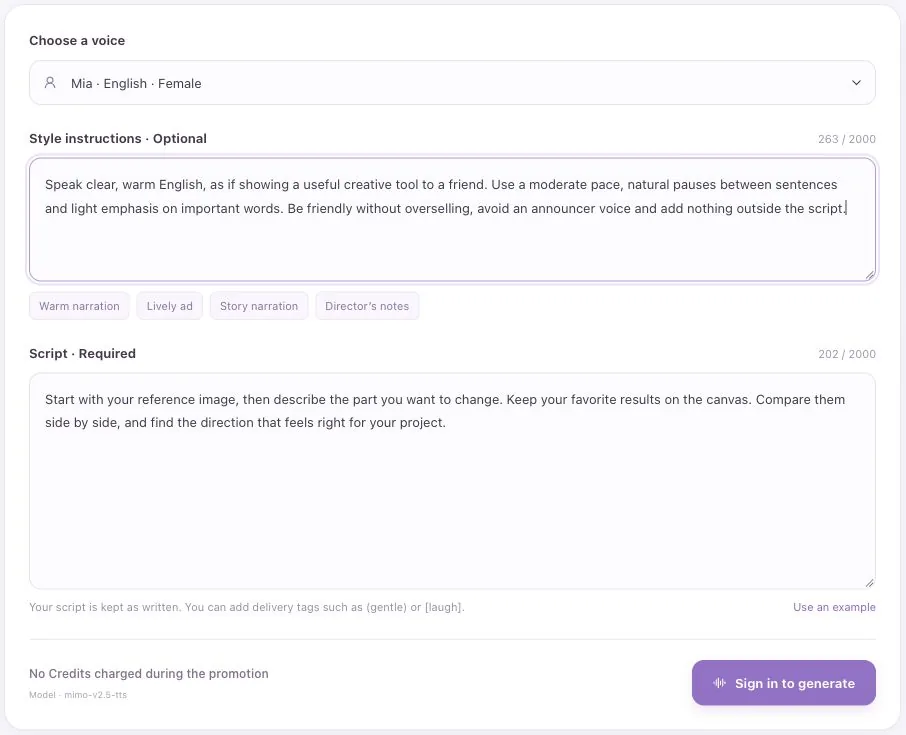
Each field accepts up to 2,000 characters. Start with two or three sentences containing a product name, a number or a tricky word, and confirm pronunciation before extending the script. This is a real English-interface form screenshot filled with a tutorial example; it was not submitted for generation.
3. Preset voice: narrate a product walkthrough
Choose Preset voices and select a voice from the list. Copy this into Style instructions:
Speak clear, warm English, as if showing a useful creative tool to a friend. Use a moderate pace, natural pauses between sentences and light emphasis on important words. Be friendly without overselling, avoid an announcer voice and add nothing outside the script.
Put this separate block into Script:
Start with your reference image, then describe the part you want to change. Keep your favorite results on the canvas. Compare them side by side, and find the direction that feels right for your project.
Generate and listen: did it read only the script, finish sentences naturally and avoid overemphasizing “reference image” or “canvas”?
4. Voice design: describe a consistent narrator
Switch to Voice design. Replace vague descriptions such as “a nice voice” with pitch, texture, rhythm and intended use. Voice description:
Design an adult narrator for a quiet creative tutorial. Use a medium-low register, warm clear timbre and a little natural breath without raspiness. Speak English clearly at a slightly slower pace, with unhurried pauses and a steady, reassuring mood. Do not imitate a specific person, perform theatrically or force the pitch downward.
Script:
You do not need to decide every detail at the beginning. Start with one reference image, choose a direction you like, and make one small change that brings the picture closer to what you imagined.
Use the same script to compare two designs. Change one description at a time, such as slightly slower to moderate, so you can assess its effect.
5. Voice cloning: prepare a clean reference
Use your own voice or one you have explicit permission to use. Upload or record 5–30 seconds of clear, single-speaker speech in MP3 or WAV, no larger than 7 MiB. Avoid music, overlapping speakers and heavy reverberation, then confirm the on-page voice authorization.
Style instructions:
Use the vocal characteristics of the reference recording to read the new script naturally. Keep the delivery clear, warm and moderately paced, with a short pause at each full stop. Do not repeat the reference recording's words or add an introduction, background sound or anything outside the script.
Script:
For this version, listen to the overall rhythm. The first sentence explains the purpose. The next sentence explains the action. Leave a little space at the end so the viewer can take in the image.
Listen for resemblance, articulation and natural breathing. This is synthesized audio, not a guarantee of an identical voice. Replace a noisy or mixed-speaker sample before trying to correct it with more instructions.
6. Fix one audible problem
Treat fast pacing, unclear words and excessive emotion as separate revisions. Keep the script and give the delivery field one concrete target:
Keep the current voice characteristics and the same script. For this version, slow the overall pace slightly and add a natural pause after each full stop. Do not stretch individual words, change the emotion or add or remove any sentence.
For a mispronounced name or abbreviation, try a clear spoken spelling in the script and listen again. Shorter sentences can help awkward language switches. Instructions guide delivery; they do not provide precise timeline control.
7. Listen from beginning to end before downloading
- The opening, ending and sentence order match the script, with no spoken instructions.
- Names, numbers, abbreviations and key terms are pronounced correctly.
- Pace, volume and pauses suit the actual video or presentation.
- The voice source and intended use are authorized.
The studio currently requires sign-in, costs 0 Credits and outputs WAV. Generated audio is private by default and retained for seven days, so download it promptly. Reference recordings are deleted when the job ends; local drafts last up to seven days and are cleared on sign-out. Check the current page terms when you use it later.
This step creates audio. Import the WAV into your video editor to arrange visuals, subtitles and music. For a mode comparison, see text to speech, voice cloning and voice design.
Sources and further reading
Fill in the script and voice instructions separately. Voice generation is currently free and requires sign-in; download your WAV when it is ready.