1. Watch the result: from training room to cloud palace
The character starts in white training clothes. As the camera orbits, the outfit takes on a crystal texture and the room becomes a palace above the clouds. The sword makes this a useful test: the clothes and setting may change, while identity, pose and grip still need to remain coherent.
Play the full clip, then pause at the side and back views. Check whether the camera travels around the character, whether the person remains recognizable, and whether the hand or sword bends. This is an actual generated clip, rather than an edited transition between two still images.
Actual silent output generated on the site: about five seconds, 1280 × 720. The particles, outfit and setting change within one generated clip.
Open the original video2. Choose a standard orbit or a two-image outfit change
Open the 360° workspace and choose according to what should change.
| Mode | References | Use it for |
|---|---|---|
| Standard orbit | 1–9 images of the same subject | Keeping the look while exploring more angles |
| Two-image outfit change | Exactly 2 images, in order | Moving from the old outfit and setting to the new ones |
Standard orbit does not turn the reference order into a story. Extra images should clarify the same subject, without introducing different people or conflicting outfits. The witch clip below includes arm and hair movement as the camera moves: preserving the look does not freeze every body part. The output is an AI-generated 2D video, not a freely rotatable 3D model.
Actual standard-orbit output: about five seconds, 834 × 1112. Compare the hat, hands, clothing and background across the different views.
Open the original video3. Image 1 defines the person; image 2 defines the new look
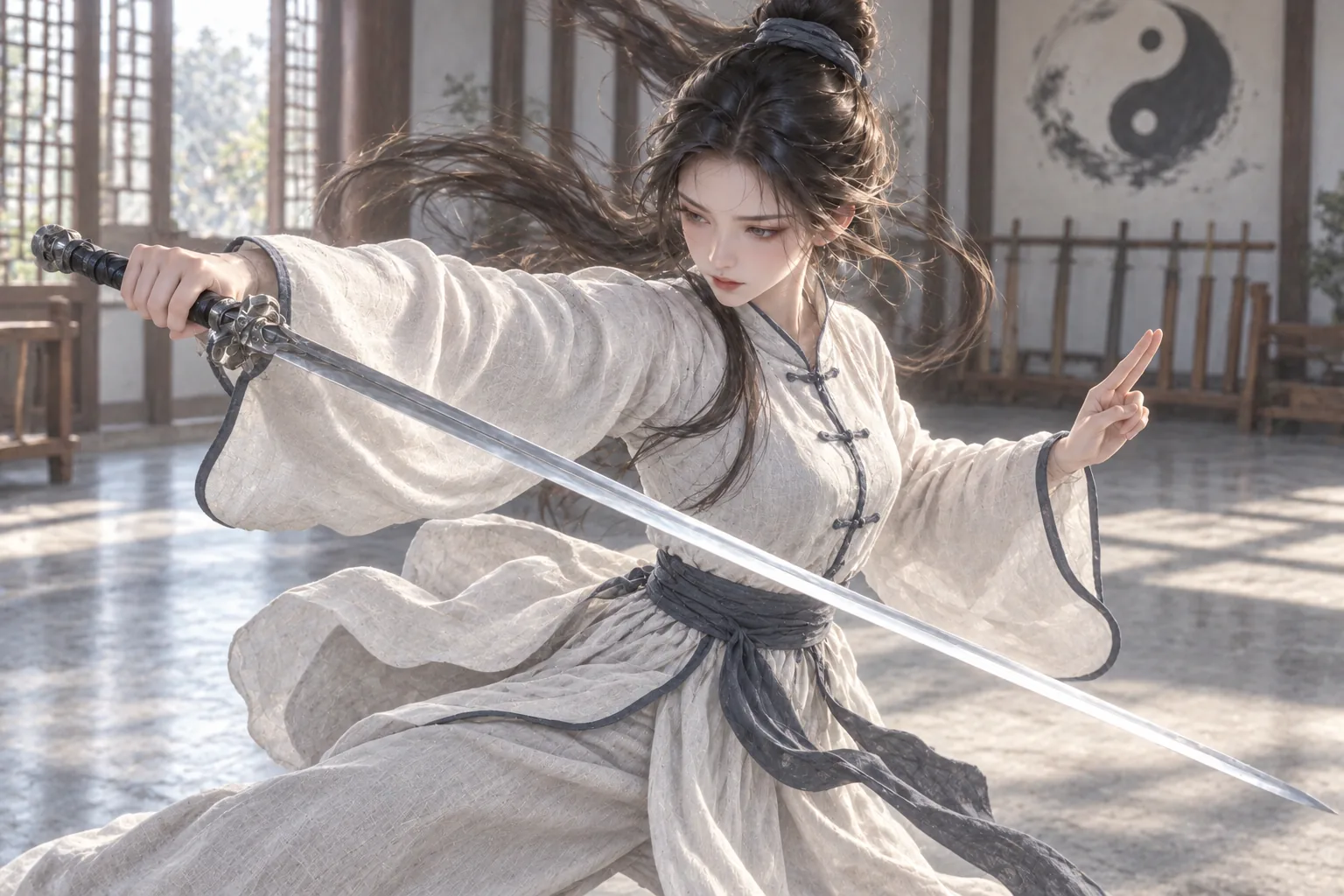
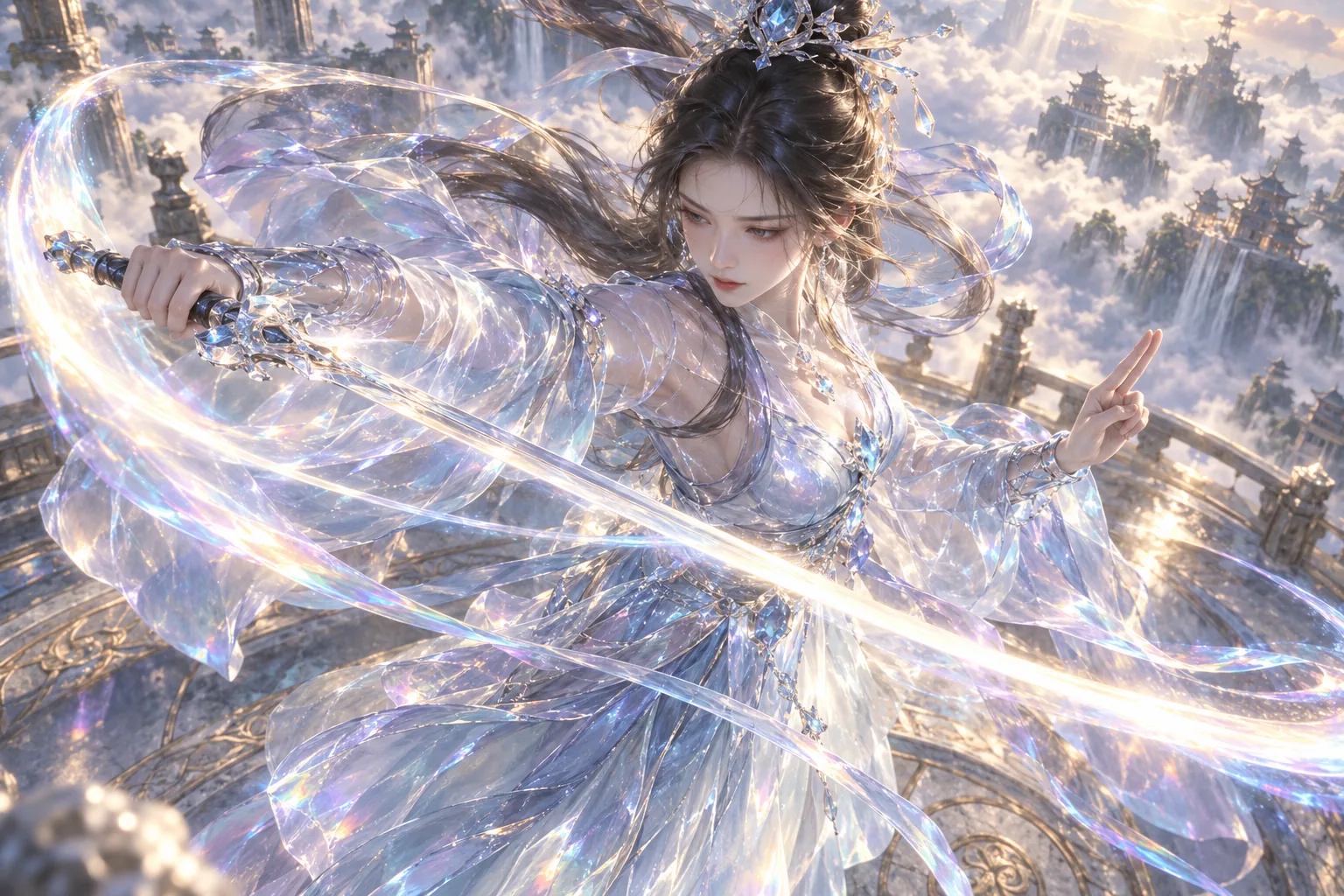
In two-image mode, image 1 supplies identity, pose, held props, the old outfit and the old setting; image 2 supplies the new outfit, worn accessories and new setting. Keep pose, subject scale and framing similar. A different person, pose or missing prop in image 2 adds uncertainty.
These are the sword example's original references. To prepare your own second image, attach image 1 in the creative assistant and adapt this prompt. It is for making a reference image, not for the 360° form, and it is not a reconstruction of the original prompt used for these assets.
Using my uploaded image 1, generate one second reference image for a two-image outfit change.
Keep the same adult character's face, hairstyle, proportions, pose, orientation and position. Preserve the hand's grip on the sword, and the sword's shape and length.
Change only the white training clothes into a layered, translucent crystal-textured outfit, and the training room into a bright palace above the clouds. Keep the body fully covered and match the material to the scene lighting.
Keep the original aspect ratio and similar framing, with the whole character visible. Add no second person, text, watermark or extra weapon.
Check the face, hands and sword in image 2 before generating the video. The video stage should not be relied on to repair a faulty reference.
4. Generate a clip in the workspace
- Sign in, open the 360° workspace and choose the mode.
- Upload images or select them from your library. In two-image mode, check the order again before submitting.
- Choose the model and resolution: MiniMax H3 offers 768P / 2K; Seedance offers 720P / 1080P. The current target is a five-second silent video. Seedance's two-image outfit mode uses 16:9.
- Review the quote and confirm generation. You can leave while it runs and return through the 360° category in My Works. A completion email notification is also available.
Model, resolution and account discounts affect the quote. Use the price shown before submission and the final settlement; check again after changing settings. The sample dimensions are not a fixed output size for every model.
5. Understand the five-second transition
The built-in outfit-change instructions aim for roughly one second to establish the old look, two seconds for the particle change during the orbit, and two seconds to show the new look. The goal is a continuous orbit ending near the front view.
These are generation targets, not an exact editing timeline. There are no custom-prompt or per-stage timing fields in this workspace. A result may change outfits early, move unevenly or fall short of a complete turn. Judge the sword clip by its actual frames; choosing 360° does not verify an exact angle or timing.
6. A second example: night dress to daytime suit
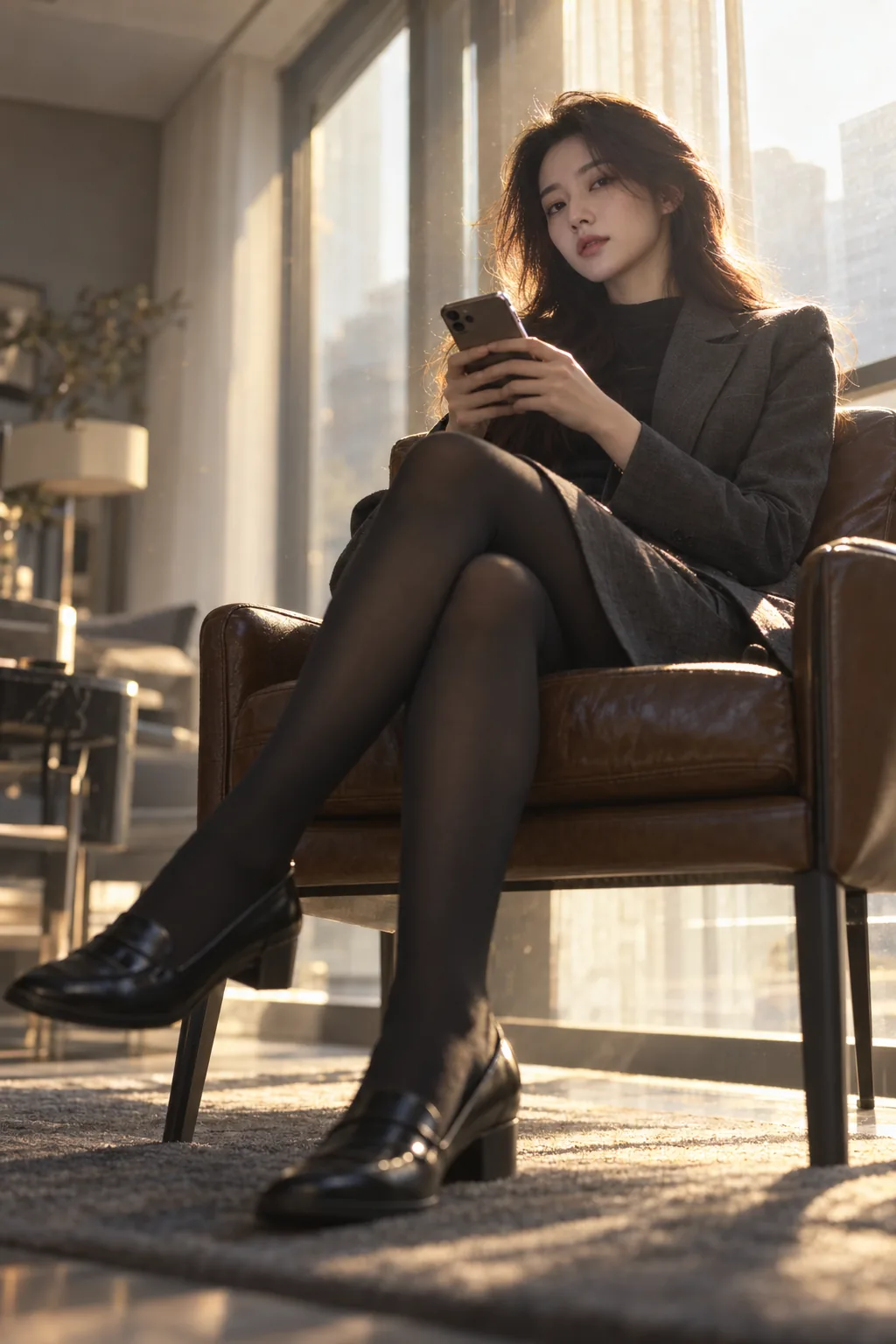
The same approach works for an everyday change: image 1 shows a black dress beside a window at night; image 2 shows a gray suit in daylight. Clothing, setting and lighting change together, creating a clear before and after.
Both references are portrait images, while the result is landscape 16:9. The model fills in the sides, so inspect the chair, window frames and room details. When framing matters, prepare references close to the target aspect ratio and leave room around the body, hands and feet.
Actual two-image output: about five seconds, 1280 × 720. Compare it with the portrait references below and check the added space and objects.
Open the original video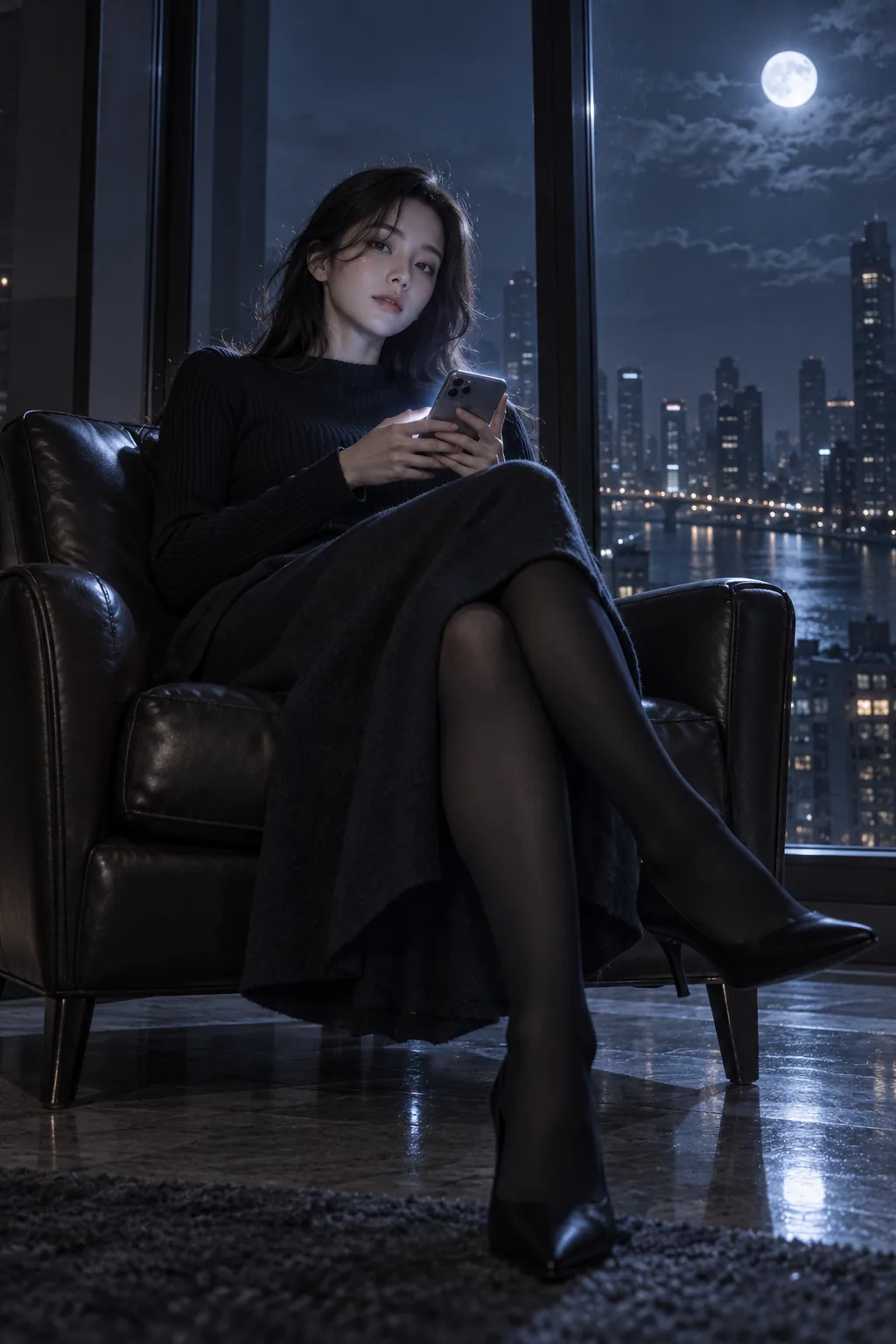
7. Inspect frames, then export the video and stills
In the workspace, play or pause the clip, drag the preview or slider to find an angle, and use arrow keys for fine adjustments. Check the face, side and back views, contact between hands and props, and whether the ending clearly shows the new outfit.
Download the original MP4 when you are happy with it. Save the current frame as PNG for a cover, poster or reference, or add the frame to your canvas. A PNG retains the pixels of that video frame; it does not create extra detail from a 720P source. This article's players are for watching. Use the workspace for drag-to-rotate viewing, frame export and adding frames to the canvas.
8. Fix a specific issue and save the result
- The person turns but the camera stays put: compare side views and background movement before deciding to generate again. The last frame alone is not enough.
- The face or body changes with the outfit: align identity, pose and framing across the references; fix image 2 first.
- The sword, fingers or accessories deform: make sure the reference details are clear, then inspect the video frame by frame. Simplify very thin or heavily obscured props if needed.
- The change is too early or the orbit incomplete: this is a deviation from the requested motion. Changing download formats will not repair it; review the quote before generating again.
Private videos generated in the workspace are kept for 30 days. Download important originals and selected frames in time. For your next experiment, change one variable, such as everyday clothing to formalwear or daylight to night. See the reference-image guide for preparation and AI 360° orbit for the feature overview.
Sources and further reading
Bring your references, choose a mode and confirm the quote before generating. Video generation uses Credits.