1. Prepare a useful brief, not a perfect prompt
Give the destination, dates, departure point, travellers, pace and approximate budget. Mention accessibility needs and any bookings that cannot move. Ask the assistant to research opening hours, reservations and transport, with source links and a clear distinction between verified information and estimates.
For this tutorial, imagine a three-day Lisbon trip for two adults with a relaxed pace. This is a planning example, not a booking or a checked live itinerary. If dates are undecided, keep them explicitly undecided rather than inventing availability.
2. Agree the document outline before making images
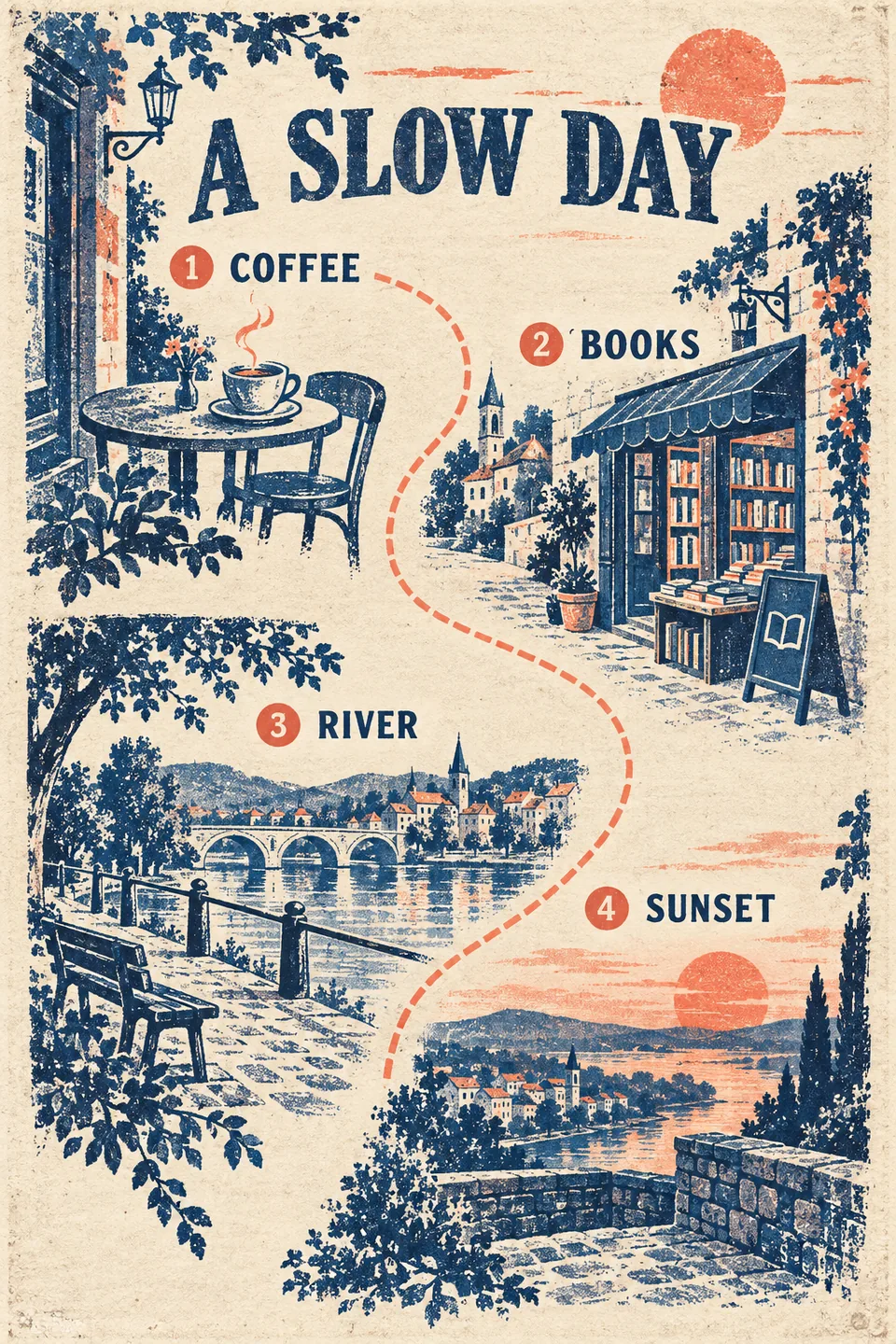
Ask for a short overview, one section per day, transport notes, a budget, reservations and sources. Keep the latest agreed itinerary as the factual version; illustrations should follow it.
| Document section | Useful image | Keep as selectable text |
|---|---|---|
| Overview | A cover illustration | Dates, travellers and assumptions |
| Each day | One relevant scene or route sketch | Stops, timing, transport and reservations |
| Practical notes | Only if it explains something | Budget, source links and items to recheck |
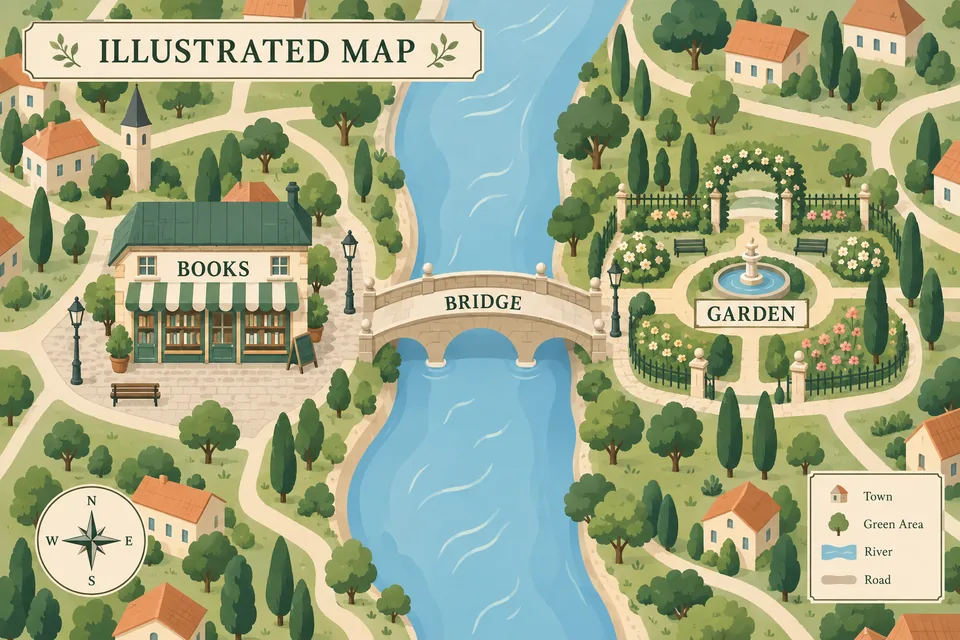
For a short itinerary, a cover and a few relevant pictures are usually more useful than an image on every page. Never use a decorative route sketch as navigation.
3. Make the pictures available in the same chat
Ask the assistant to create the chosen illustrations, or upload photos you have permission to use. Wait until the images have finished generating. Simply pasting a web image URL does not ensure it will be embedded in the exported document.
Identify each image by its subject and intended section: “Use the riverside illustration for Day 2, beside the afternoon walk.” If there are several similar versions, specify the one to keep. Label AI pictures as illustrations; do not present invented views as photographs of a real hotel, restaurant or attraction.
4. Copy this export request
Replace the bracketed details after the itinerary and images are ready:
Create a downloadable PDF from the latest agreed [three-day Lisbon] itinerary in this conversation.
Use [English], an A4 portrait layout and readable body text. Include an introduction, trip summary, daily plans, transport, budget, reservations, items still to verify and the source links.
Use the completed [city overview] image on the cover. Place [Day 1 image], [Day 2 image] and [Day 3 image] beside the matching day. Add short, accurate captions identifying AI illustrations.
Keep dates, prices and practical instructions as selectable text. Preserve links. Do not invent bookings or silently change the itinerary to fit a picture.
If an image is missing or unreadable, tell me which one. Deliver the actual PDF file, not only its text or export instructions.
5. Open the PDF and check the placements
Download the file and open it on both a phone and a larger screen. Check that each picture belongs to the correct day, no image is stretched or cut through a subject, and page breaks do not strand headings. Confirm that text remains readable and links open the intended official pages.
Compare dates, traveller counts and budget units with the chat. Read captions too: a beautiful image can still show a different place. Ask for a targeted revision such as “Move the Day 2 picture below its heading and keep the budget table together.” This guide describes the supported workflow, not a guarantee that every generated file needs no editing.
6. When the PDF or a picture is missing
| What you see | What to do |
|---|---|
| Text saying “I will export” but no file | Ask the assistant to create the document and provide a downloadable PDF |
| A picture is absent | Check it has completed, is still accessible in the conversation, and has been assigned to a section |
| The wrong version appears | Name the correct image and request a replacement in that section |
| A task failed | Use the displayed reason to retry the failed step; do not treat a partial reply as a completed document |
Chat and image generation use Credits. Check the current Pricing page before creating a large set of pictures. Public guides can be read without signing in; creating a private itinerary requires an account.
Sources and further reading
Start with your destination and dates, then paste the prompt from this guide. Chat and AI image generation use Credits; see Pricing for current terms.