What can your Telegram AI bot do?
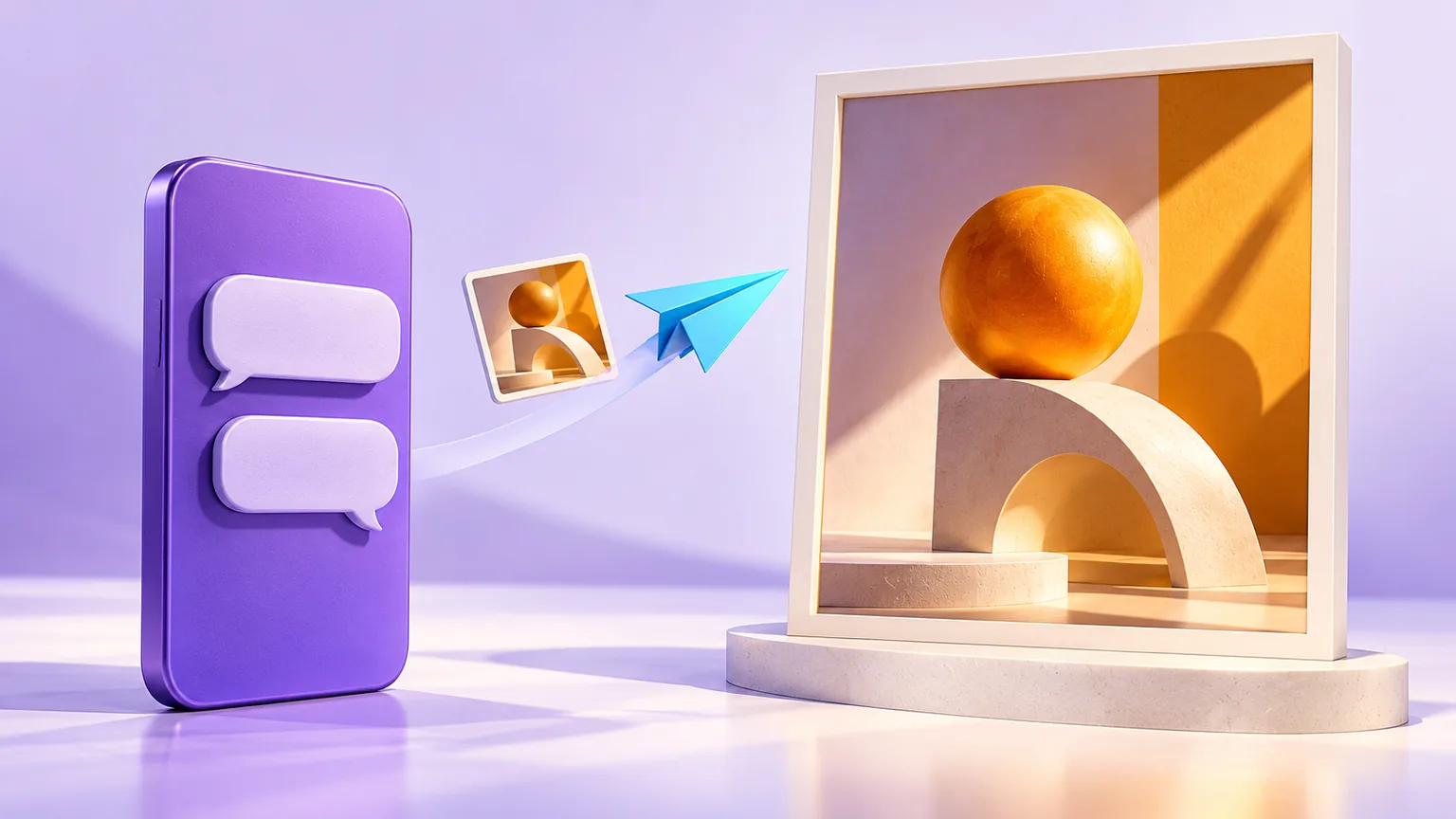
Use this connection for personal creative work: discuss a brief, supply reference images, request an image or receive supported files from an existing conversation. It uses your Sparkles account, model access and Credits.
The connection accepts only private messages from the Telegram account you pair. It is not a group bot. For team conversations, see the Lark and Feishu group bot guide.
Create a bot, then pair your private chat
- Create your own bot through Telegram’s BotFather and obtain its Bot Token. Use a dedicated bot: one already connected to another service with a Webhook cannot connect directly.
- Sign in to Sparkles and click Connect chat apps in the sidebar, then select Telegram. On mobile, open navigation first. You can also use Telegram account settings.
- Enter the token in its dedicated field. Choose a reply model, a supported reasoning level and a reply language, and decide whether to save creative results to a canvas. Keep the token out of ordinary messages and screenshots.
- Open the pairing link from the settings page and start a private chat with the bot. The link expires and can be used once.
- Send a simple request after pairing. A first valid creative request creates a session if none is selected;
/newstarts one explicitly.
Each Sparkles account can have one active Telegram connection. The connection dialog opens only when you click its button.
Send reference images individually
You can send text and individual image, document or video attachments. Send multiple references one at a time, not as a Telegram album. Files without instructions are held for your next text request; a single file with a caption is submitted directly. Voice and audio input are not currently supported, although generated audio can be delivered.
Use up to 6 pending attachments, with a 16 MiB limit per file and 24 MiB in total. Tool-specific format rules still apply. Switching sessions clears unsubmitted attachments, so select the session first.
Here is an input example, not a recorded generation. Upload a mug photo you may use, then send:
Use my mug photo as the subject reference.
Keep its shape, handle, glaze and proportions.
Suggest two vertical social-post compositions with soft morning light and a pale wooden table. No text in the image.
Explain the difference first. Wait for my choice before generating 1 image.
For preparation tips, read the reference image guide.
Keep the right session and model selected
| Command | Purpose |
|---|---|
/new |
Start a new session |
/sessions |
Choose one of your conversations |
/current |
Check the current conversation and task |
/model, /effort |
Choose an available reply model and supported reasoning level |
/status |
Check the connection, model, subscription and Credits |
/stop |
Request cancellation of the current session’s task |
/open, /canvas |
Open the web conversation or associated canvas |
Model changes apply to new tasks. Submitted tasks keep their original settings. Connecting a bot does not unlock additional model access, and switching sessions does not replay the entire conversation into Telegram.
Watch progress, then download the file
The bot delivers visible text by stage, with temporary draft previews while text grows. Finished images are delivered individually rather than waiting for the final summary. Selectable questions can appear as buttons. Drafts show progress; the final reply and actual attachments are the result.
Image results are sent as files. Download the file for its original quality instead of saving a screenshot or preview. Canvas layout and layer editing remain in the web app. With canvas saving enabled, /canvas takes you back to the associated workspace; see the chat-to-canvas workflow.
If an attachment does not arrive, use /open to check the existing result before submitting the same paid request again.
Use your existing Credits and account access
Pairing, viewing status and changing model settings do not call a generation model. Actual conversations and creative tasks use Credits under the existing model and tool rules. The connection does not include free image generation; see pricing.
Work is private by default, but messages and files sent to Telegram are handled by that platform. Bot conversations are not end-to-end encrypted secret chats. You can disconnect the bot in account settings.
Before your first task
Does switching sessions cancel a task? No. Submitted work stays with its original session. Use the relevant stop command when needed and check its final status.
Can everything happen on a phone? Discussion, reference uploads and receiving results can happen in chat. Use the web app for large-image inspection, canvas arrangement and layer operations.
Sources and further reading
Sign in to connect Telegram or Lark. Models and creative tasks use your existing account Credits and permissions.