Understand how each channel returns to the web
| Channel | Current workflow |
|---|---|
| Personal Telegram bot | Enable saving creative results to a canvas; use /open for the conversation and /canvas for its canvas |
| Lark / Feishu application bot | Receive cards and web links for actual canvas, document and workflow results; the authorized administrator opens private web results |
Lark does not currently have Telegram’s /canvas command or matching automatic-save setting. A group conversation does not automatically become a shared canvas. Start with the Telegram connection guide or Lark group guide if you have not connected a bot.
Choose the conversation before sending references
Check the project first: use /current or /sessions in Telegram, or return to the correct Lark topic. Start a fresh session or topic for unrelated work.
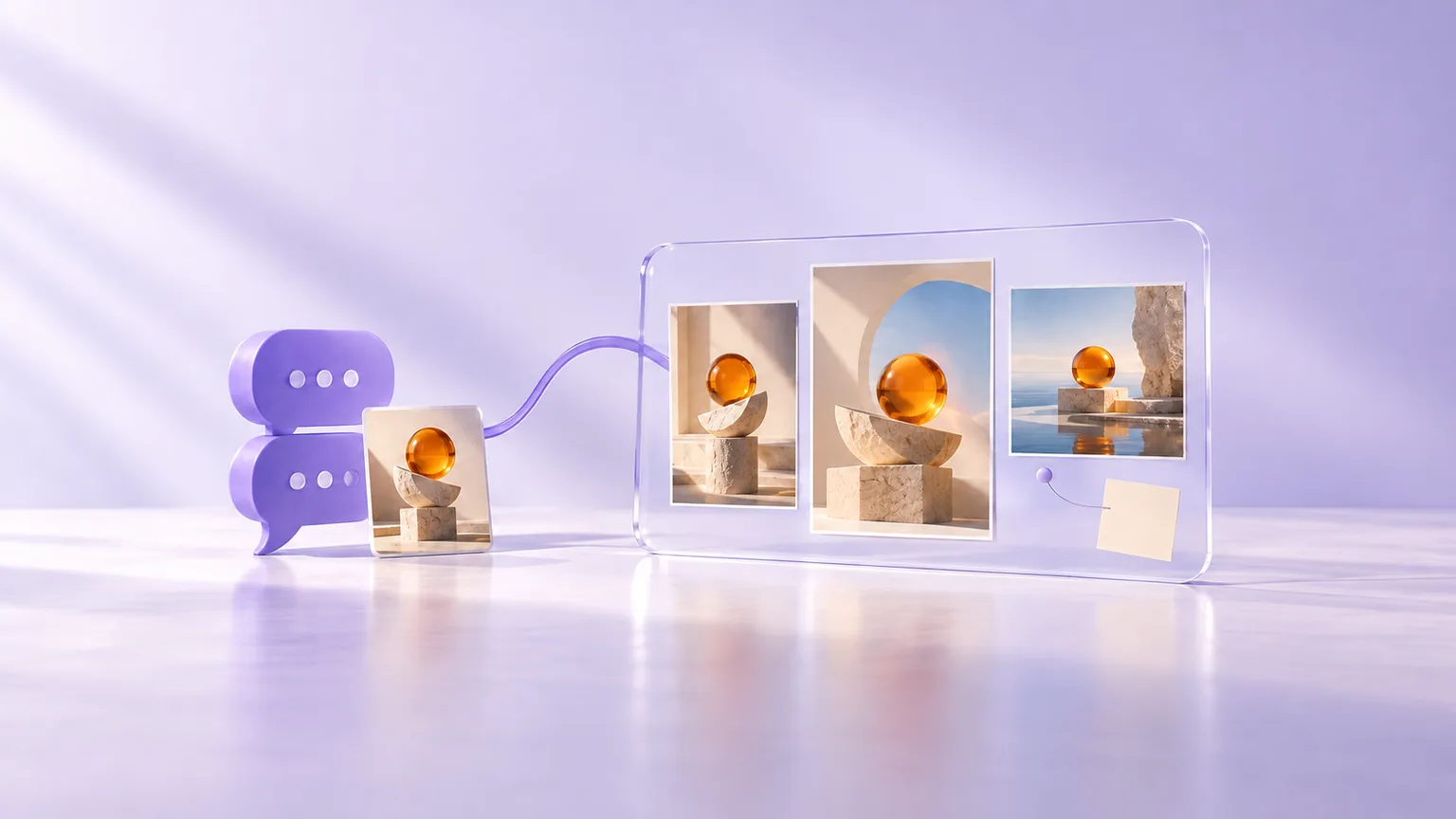
Send one clear subject reference and only the extra images you need. State whether each image supplies the subject, lighting or composition. Telegram references must be sent individually rather than as an album. Both channels allow up to 6 attachments per request, subject to their file restrictions.
This is an editable input example, not a completed generation:
We are developing a product visual for one ceramic mug.
Image 1 defines the mug: preserve its shape, handle and glaze.
Image 2 is a lighting reference only; do not copy its product or text.
Suggest two compositions first. After I confirm, generate 1 vertical 4:5 image.
Approve one result before making a series
Inspect the first image’s subject, lighting and composition before asking for more. Fix a changed mug handle or an unnatural hand before extending the direction into a series.
Make the next request specific: keep the subject and lighten the background, or preserve the composition and leave more room for a headline. New generation and editing tasks continue to use Credits under the applicable tool rules.
Distinguish progress, previews and actual files. Progress describes the work; a preview helps you judge direction; the file is what you inspect and save. A description of a planned image is not a delivered image.
Open the associated canvas from Telegram
Enable Save creative results to a canvas in the Telegram connection settings. Relevant creative results are saved to the conversation’s canvas in the background, while the bot provides progress, results and web links. /canvas also opens or establishes the current conversation’s canvas association.
On the web, confirm that you opened the intended conversation’s canvas and check its references and results. Arrange the layout, compare full-size images, add notes or use layer operations there. Saving results does not automatically design a final layout or backfill every historical message and attachment.
If something is missing, check the original conversation with /open and verify your selection and canvas setting. Repeating a paid generation request is not a way to refresh the canvas.
Let the authorized administrator organize Lark results
Approved group members can develop a brief in one Lark topic. Actual canvas, document or workflow outputs are delivered as readable cards and links. The binding administrator signs in to inspect and arrange private web results.
This places discussion in the group and detailed visual work on the web. It does not grant every member a real-time collaborative canvas or expose the administrator’s other projects. Download checked deliverables for your usual sharing process; a private workspace link is not a public download link.
Keep references, candidates and selected results separate
Arrange your infinite canvas into three areas: original references, candidates and selected results. Add short notes such as “background only” or “preserve subject, add empty space.”
Select only the materials needed for the next request and explain their roles. Reusing every unsuccessful candidate as a subject reference can make later changes harder to judge. For a full exercise, see one reference to three related images.
Check copy, dates, prices, people and product details before using a result publicly. Consistent style does not guarantee accurate information; side-by-side comparison helps reveal differences.
Save the original files and your arranged board
Telegram sends image results as files. Lark provides previews and separate original attachments. Download the file instead of a chat screenshot. If a result exceeds channel upload limits, use the authorized web workspace rather than expecting an automatically compressed replacement.
The web canvas can export selected content or the whole arrangement as PNG. That board preserves your layout; the individual original image preserves its own pixels and detail. Save the version appropriate for each use.
Private work and media have retention periods shown in the product. Download important results promptly; a chat history, web link or canvas save is not a permanent archive.
Repeat a clear creative sequence
Before generating: select the right session or topic, prepare references you may use and state what must stay and what should change.
During creation: approve one result before expanding, and judge the actual delivered files.
On the web: check the associated conversation, preserve the source references and organize candidates and selected results.
At delivery: save original files and the board separately, then confirm recipients can access what you share.
Add your own reference first, then paste a prompt from this guide. AI image generation uses Credits; check the price shown before generating.