1. Distinguish a wrong grid from uneven artwork
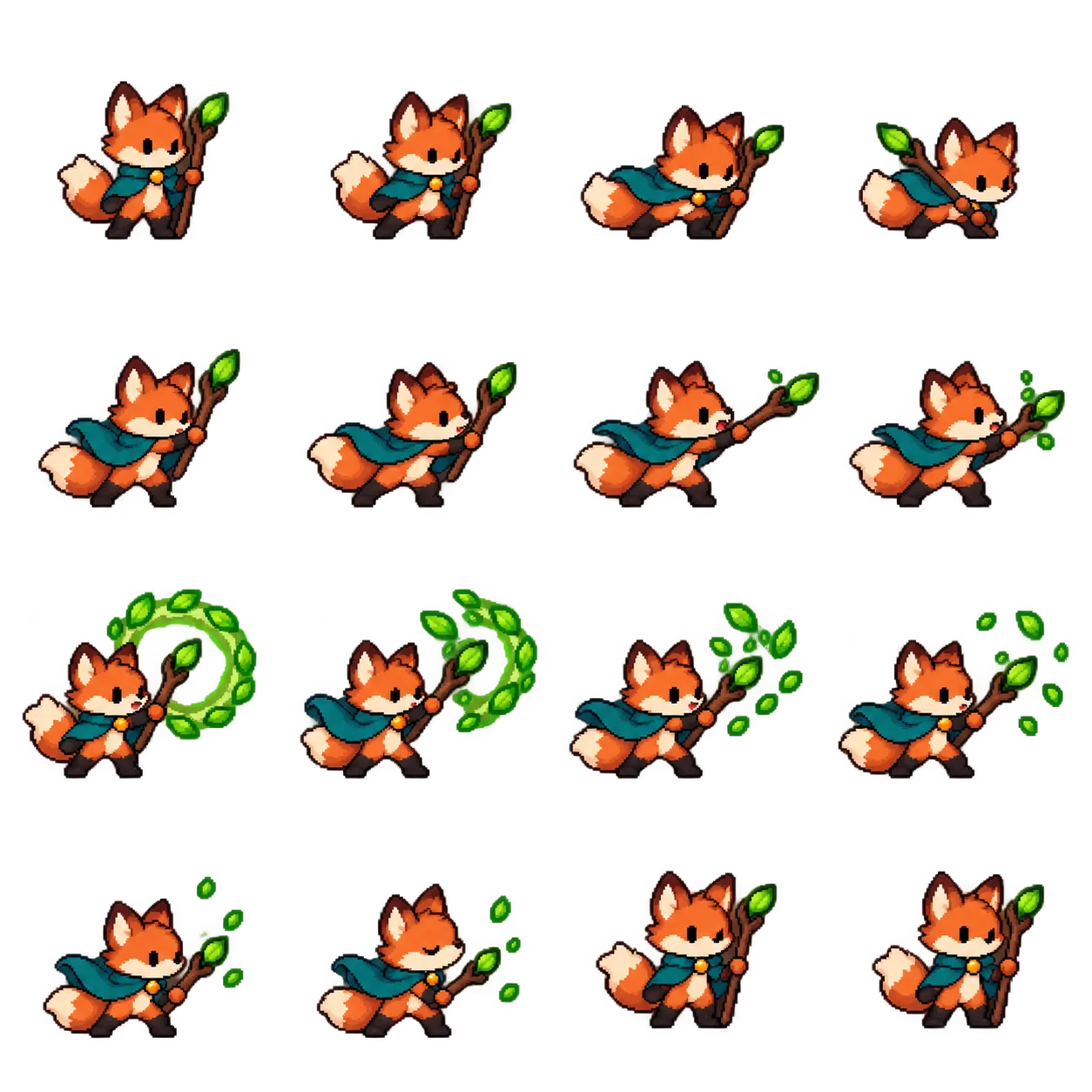
A 1024×1024 sheet divided into 4×4 produces 256×256 crops. If a drawn row is taller than 256 pixels, equal cuts can slice through a head even though there appear to be sixteen poses.
First count the intended frames and check the reading order: left to right, then top to bottom. If the actual grid is 4×3, choosing 4×4 is the problem. If it really is 4×4 but the row boundaries drift, changing the frame count will not fix it. If the head is already missing in the original, no crop adjustment can restore those pixels.
2. Adjust the cuts against the original sheet
Import the sheet into the animation studio and set its actual row and column counts. Open the original-image and grid view. Inspect the proposed cuts; automatic detection can use whitespace, but effects, shadows and uneven margins can make that ambiguous.
Adjust horizontal and vertical cuts until the lines fall between the intended frames, then apply them. Review the resulting crops again. Unequal crops are padded onto a shared transparent canvas rather than stretched to different proportions.
Set the grid and background options before fine per-frame adjustments: changing those settings resets the frame adjustments.
3. Know when a straight cut cannot solve the sheet
| Symptom | Likely cause | Useful action |
|---|---|---|
| Every frame loses the same edge | Grid or boundary offset | Correct counts and move the cut lines |
| One row loses heads | Uneven row heights | Adjust the horizontal cuts |
| A hand or effect overlaps the next cell | Artwork crosses the boundary | Rebuild that frame or regenerate with more separation |
| One column needs different row cuts from its neighbour | Irregular panel layout | Use an external editor to rebuild a regular atlas, or regenerate |
| The original already crops the subject | Missing image content | Regenerate; moving cuts cannot recover it |
The current grid uses shared horizontal and vertical boundaries. It cannot independently curve around every pose. Avoid presenting a partial repair as a perfect one.
4. A prompt that reduces geometric drift
Create one transparent PNG sprite sheet on a square canvas with exactly 4 columns and 4 rows: 16 equal-size cells, read left to right and then top to bottom.
Keep all cell boundaries on the same straight row and column coordinates. No outer title, captions, numbers, visible grid lines or irregular comic panels.
Inside each cell, leave a clear safety margin. Keep the intended character, prop and effect for that frame fully inside its own cell. Use a fixed camera and consistent scale where the subject remains visible.
Action: [describe the full sequence, including any intentional disappearance, empty frame or prop-only frame]. Preserve those intentional changes. Do not force a character to appear in every frame.
Use genuine transparent background pixels, not a painted checkerboard. Leave separation between frames so they can be sliced independently.
These constraints reduce ambiguity; they do not guarantee pixel-perfect model output. Inspect the generated sheet before exporting.
5. Keep intentional disappearance and empty frames
A thrown prop, a burst effect or a character leaving the scene may need prop-only or empty frames. Keep those frames if they belong to the action. Deleting them changes the rhythm and can turn a deliberate pause into a jump.
After slicing is correct, step through the animation and check order, timing and alignment. Use position adjustments for unwanted camera jitter, not to pull an intentionally moving object back to the centre. Check the last-to-first transition separately if you want a loop.
6. Check transparency separately from cropping
A white background is not transparency, and a checkerboard drawn into the image is not an alpha channel. Preview against contrasting backgrounds to see whether the sheet has genuine transparent pixels.
Background removal can erase white clothing or pale effects along with the background. Prefer a genuine transparent source when possible. GIF supports limited palette colour and fully transparent pixels rather than smooth partial transparency; soft edges can look different after export. Keep a PNG sheet if semi-transparent effects matter. The MDN format reference below explains the format trade-offs.
7. Preview, export and compare the actual GIF
Preview slowly first, then at the intended speed. Inspect the exported GIF too: a correct source grid alone does not prove the animation plays as expected. Keep the original sheet and, where useful, export the PNG atlas and frame data for later adjustments.
Importing an existing sheet, previewing and exporting in Sparkles Editor are free local browser operations. Generating a new AI sheet requires sign-in and consumes Credits. The related walkthrough below includes an original animated fox example and the complete import-to-export workflow.
Sources and further reading
Importing, previewing and exporting an existing sheet are free. New AI-generated sheets require sign-in and use Credits.