Use an enterprise app with Stream mode
Sparkles connects to a DingTalk enterprise internal application bot. Enable the bot and use Stream mode for message delivery; a custom group Webhook bot is not an equivalent. Messages, images and files still follow Sparkles sessions, model access and Credits rules.
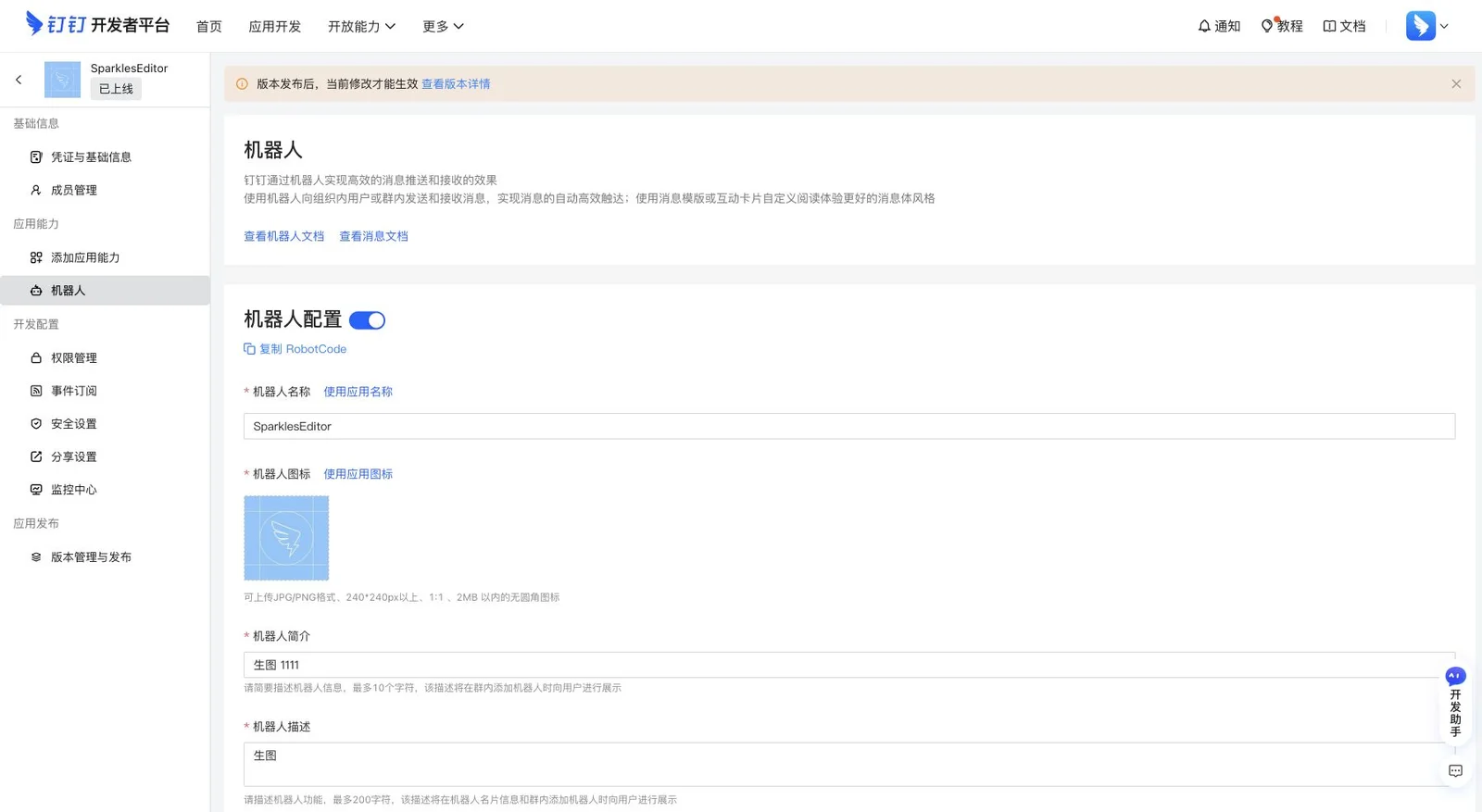
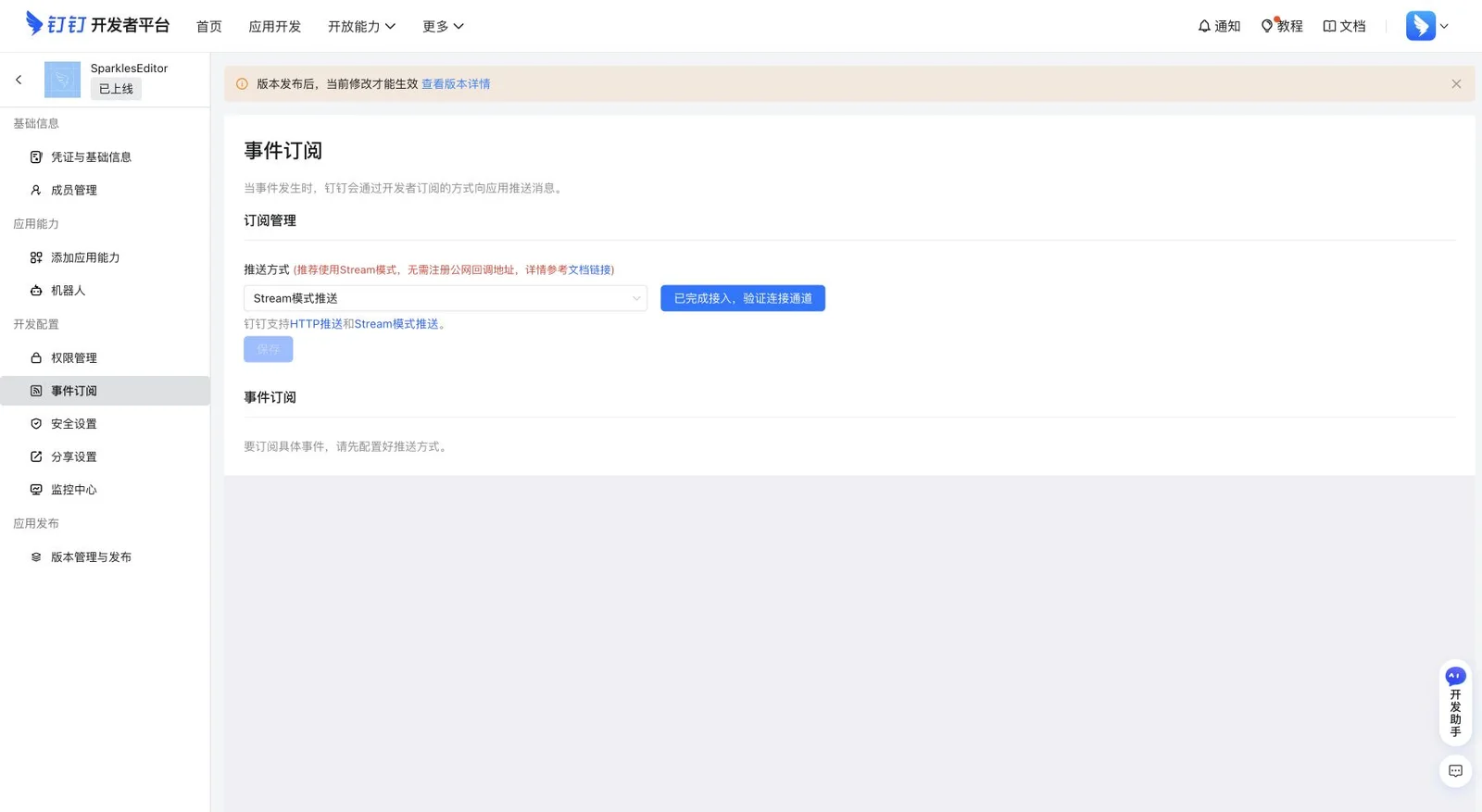
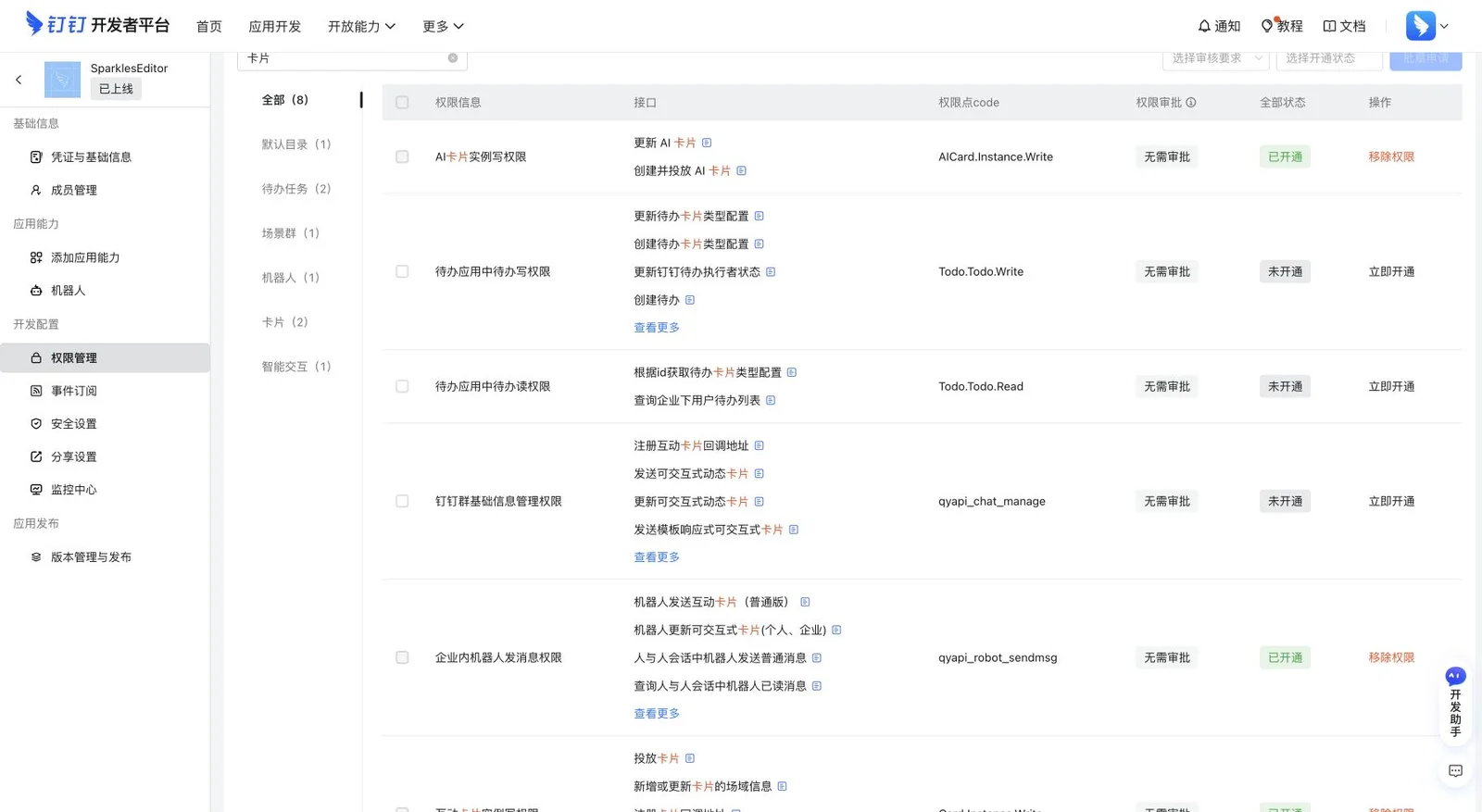
Verify the four required capabilities
In Permission Management, verify enterprise bot messaging, interactive card instance write, AI card instance write and AI card streaming update. The screenshot shows the card and bot capabilities as enabled. Unrelated todo or group permissions are not required for this flow. Permission changes take effect only after an application version is published.
Import the JSON into a fresh card draft
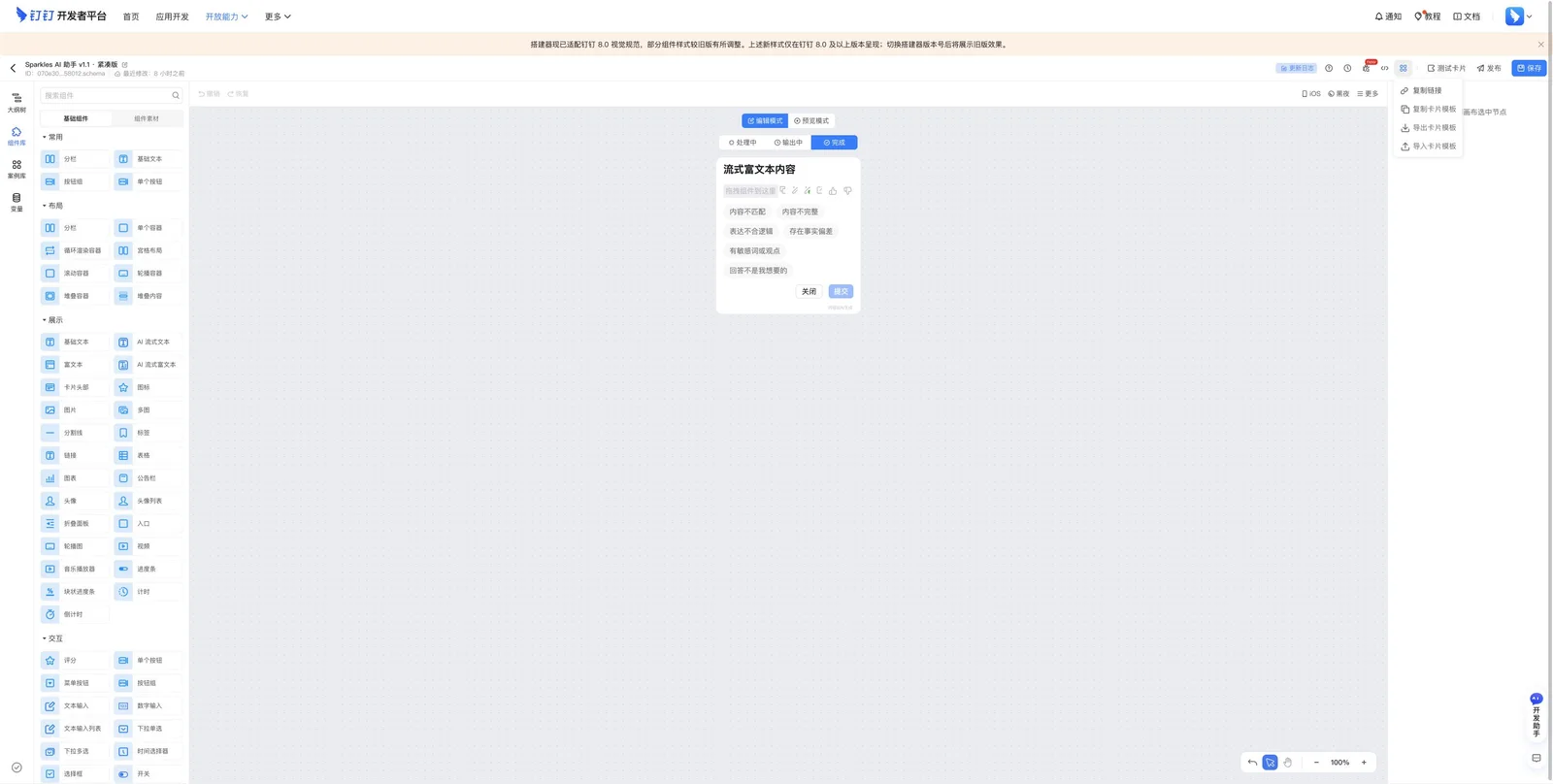
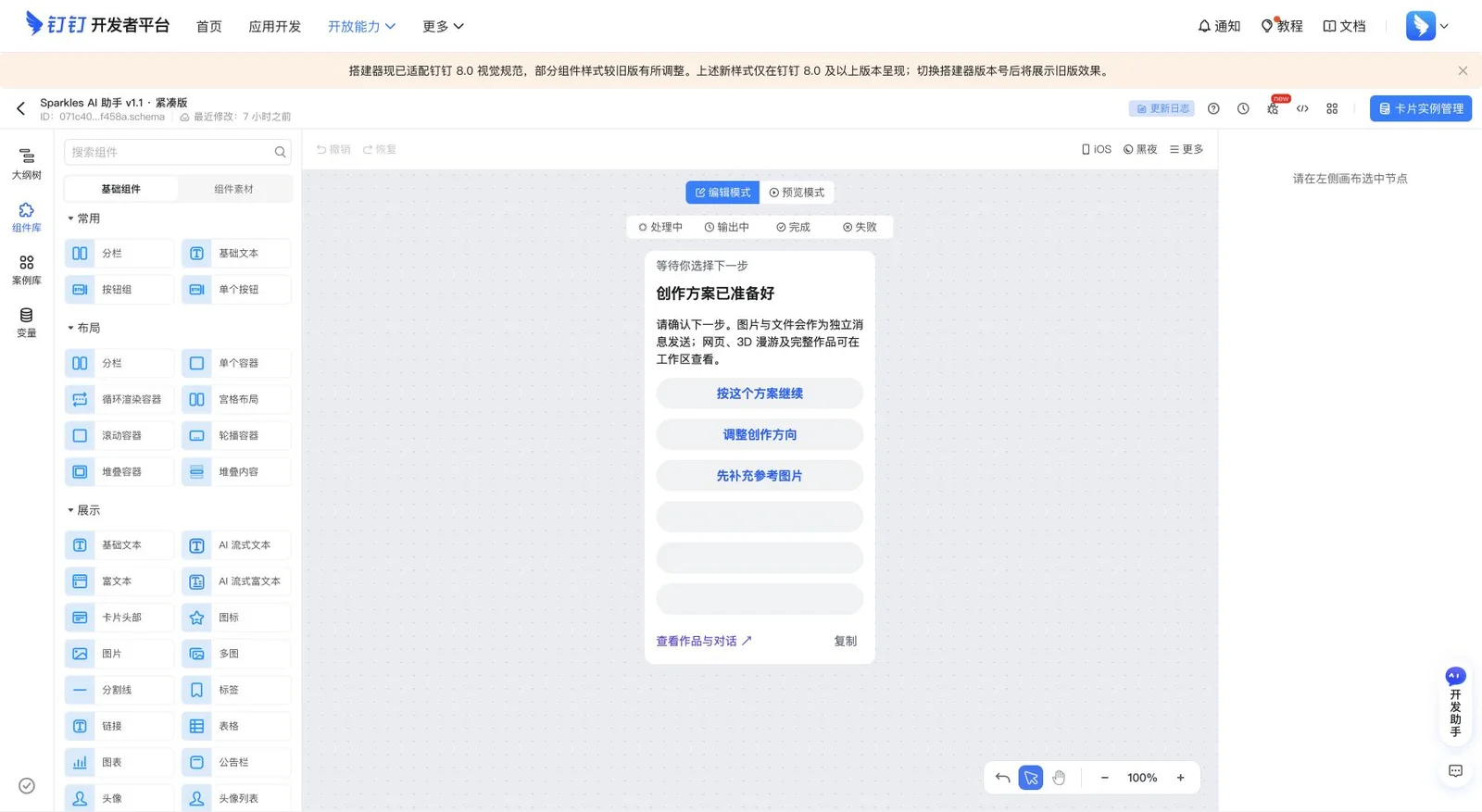
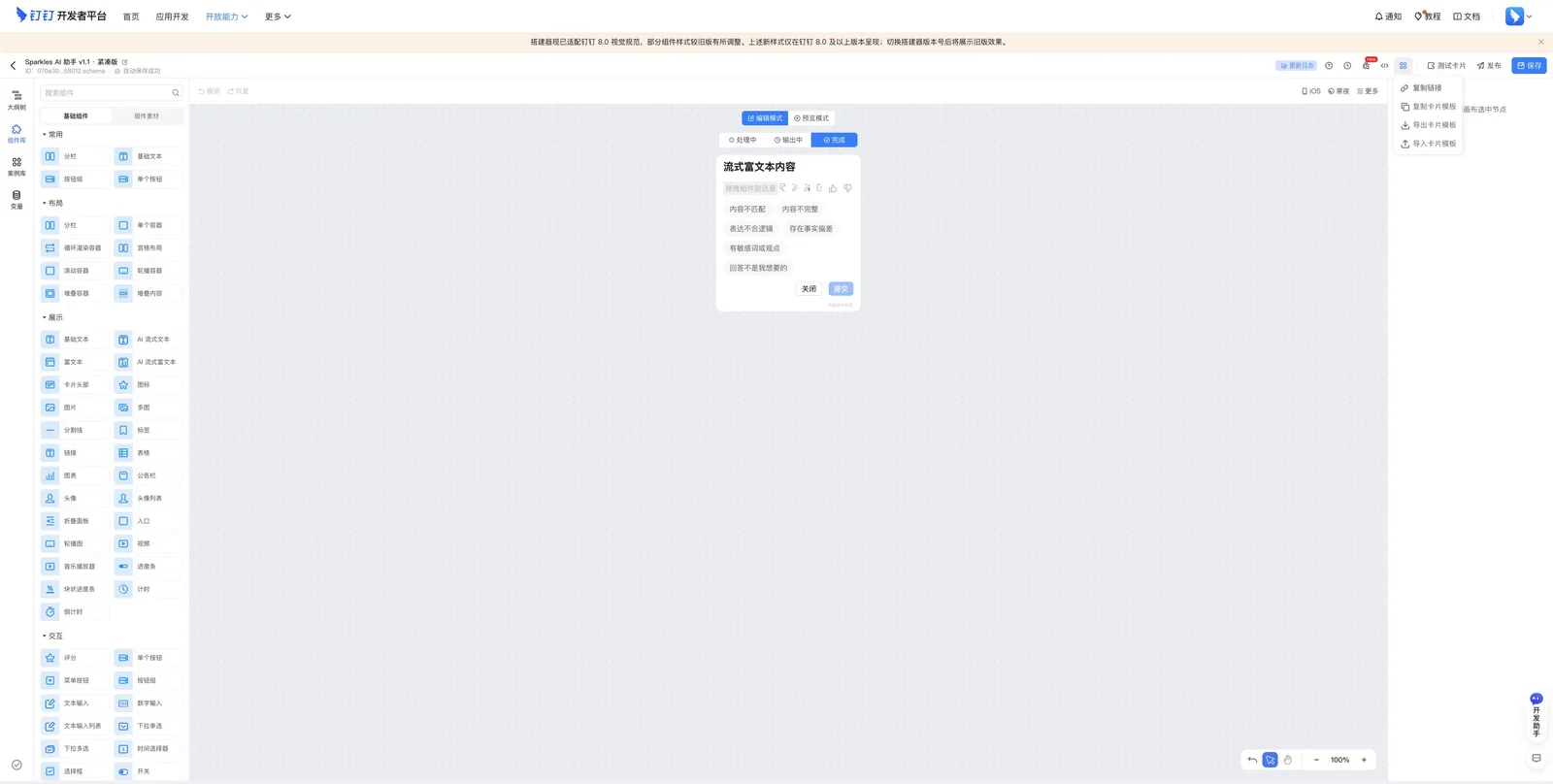
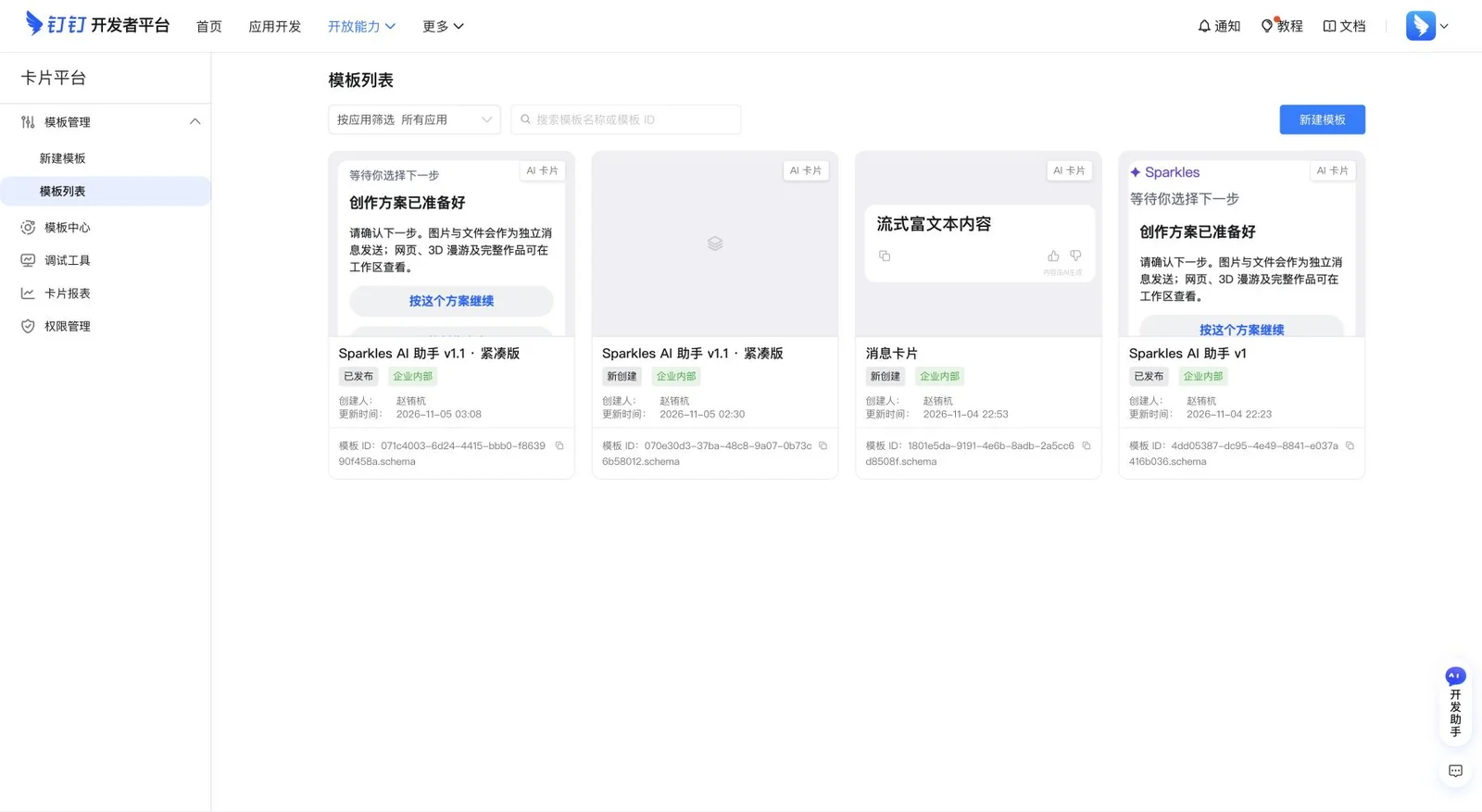
Create a new AI card draft, open the editor and choose More → Import card template. Select the Sparkles v1.1 JSON, confirm the replacement, then inspect the canvas and return to the template list. The template ID must belong to your enterprise; another enterprise’s published ID cannot be reused. Download the Sparkles v1.1 template.
Check the public variables
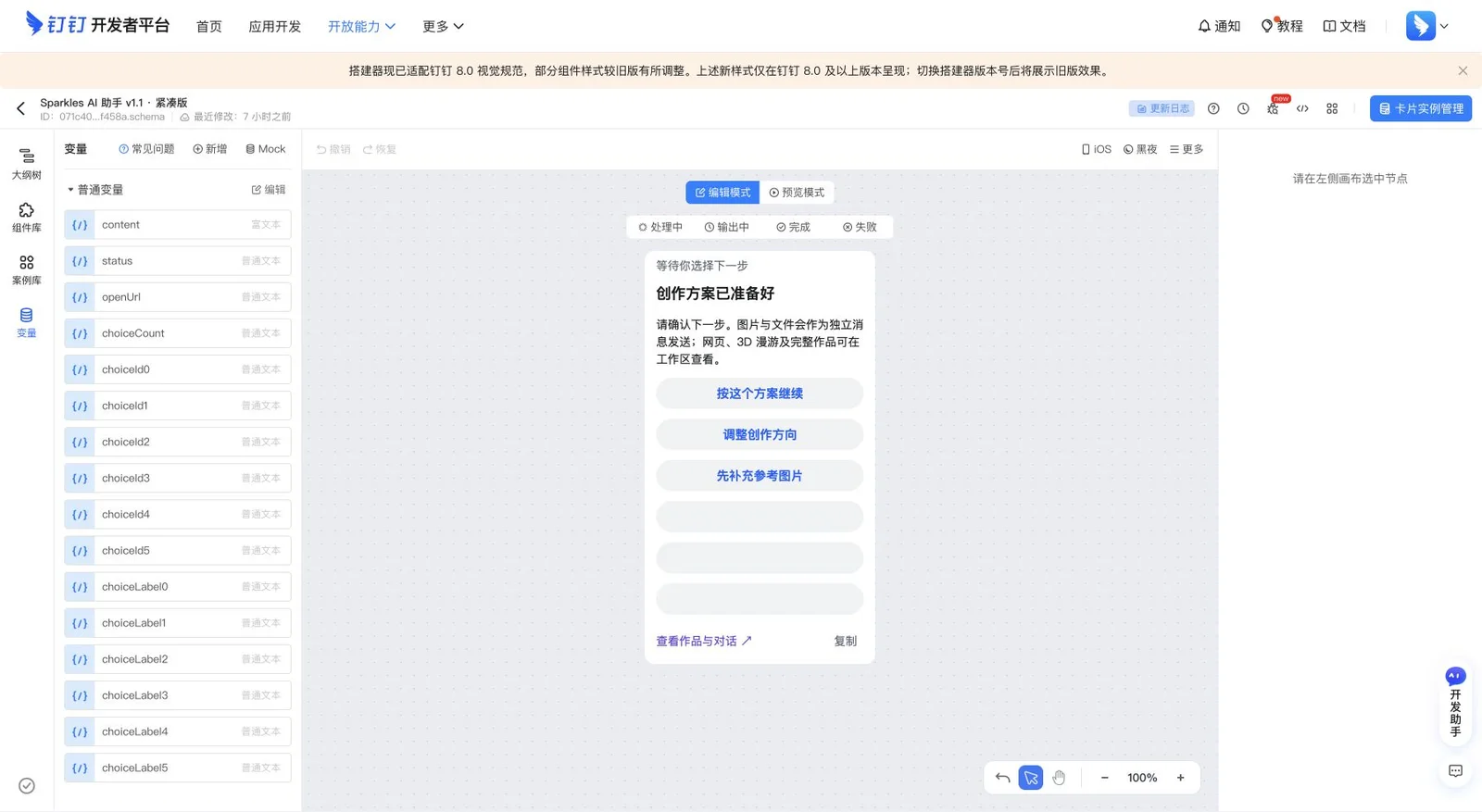
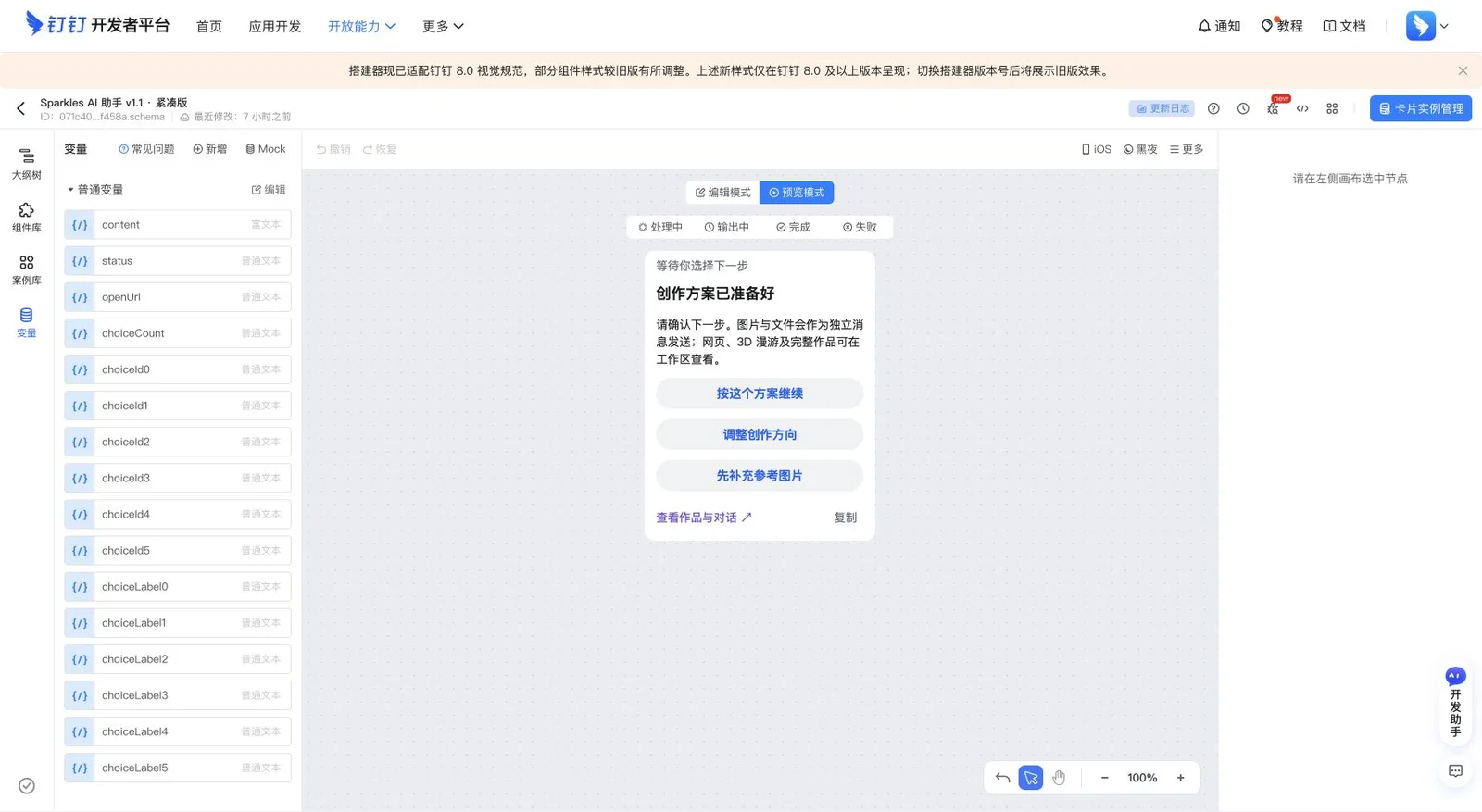
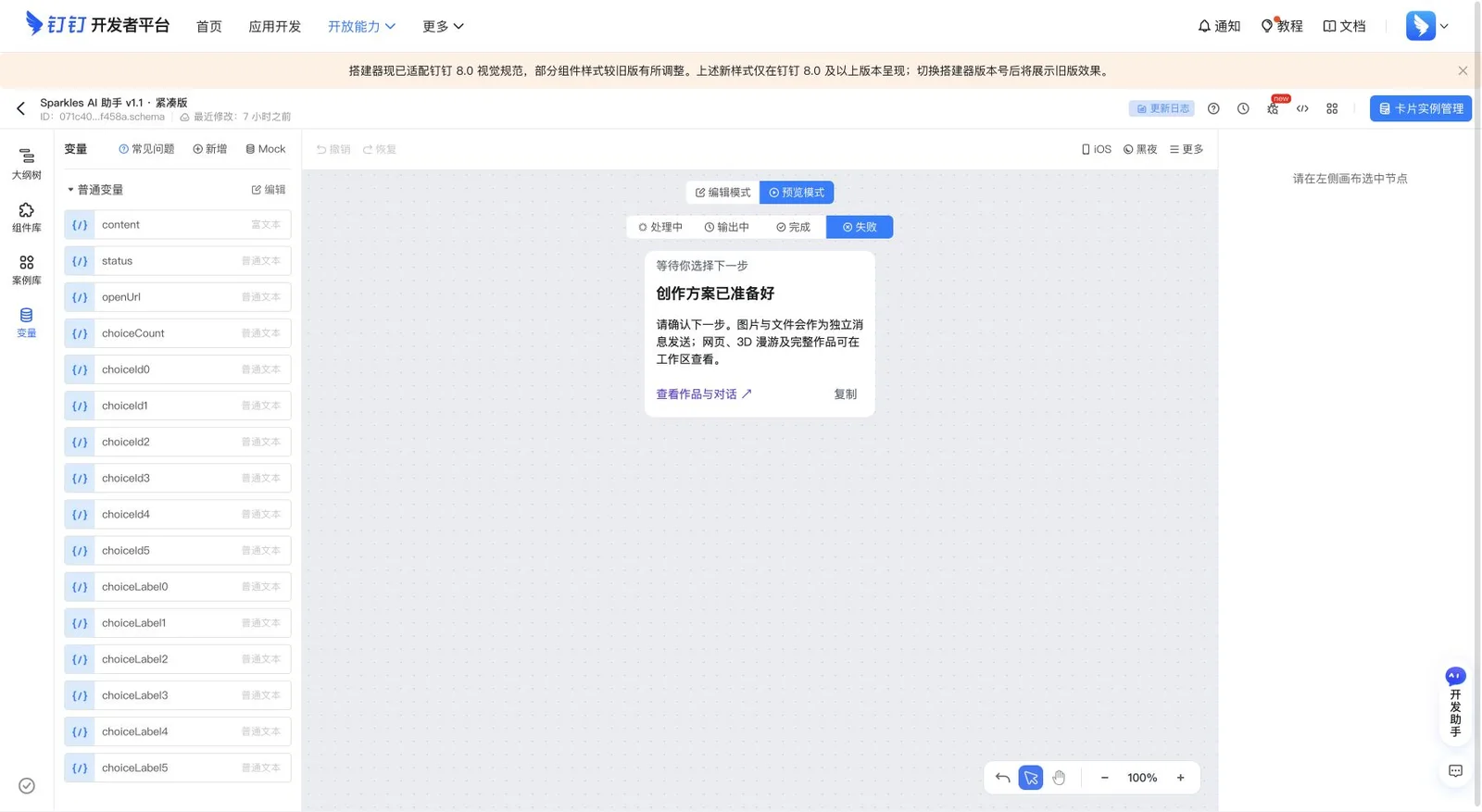
Keep content, status, openUrl, choiceCount, choiceId0–choiceId5 and choiceLabel0–choiceLabel5. Empty choice labels hide their buttons. Variables control presentation only; Sparkles keeps the user, task, session and permissions on the server.
Preview every delivery state
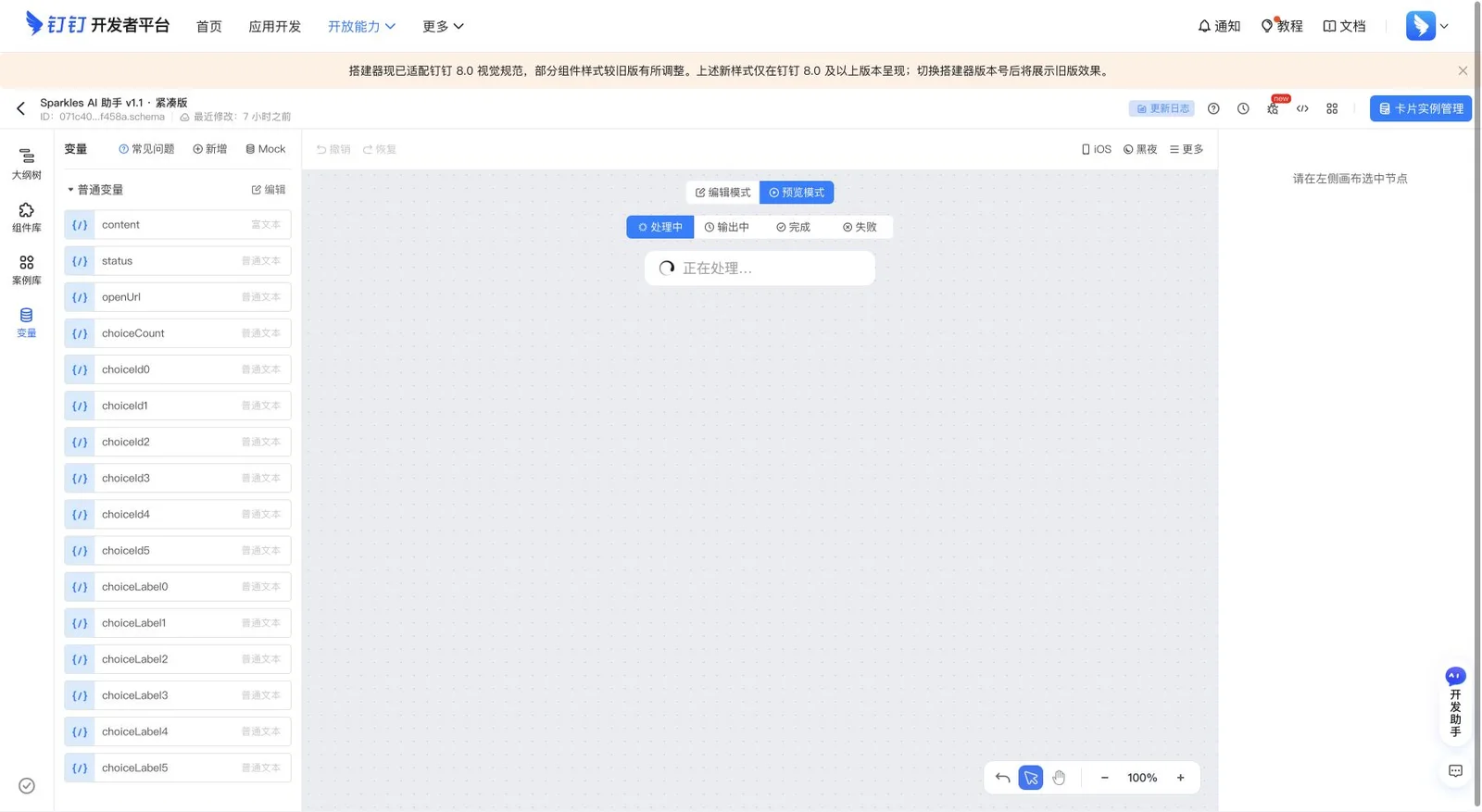
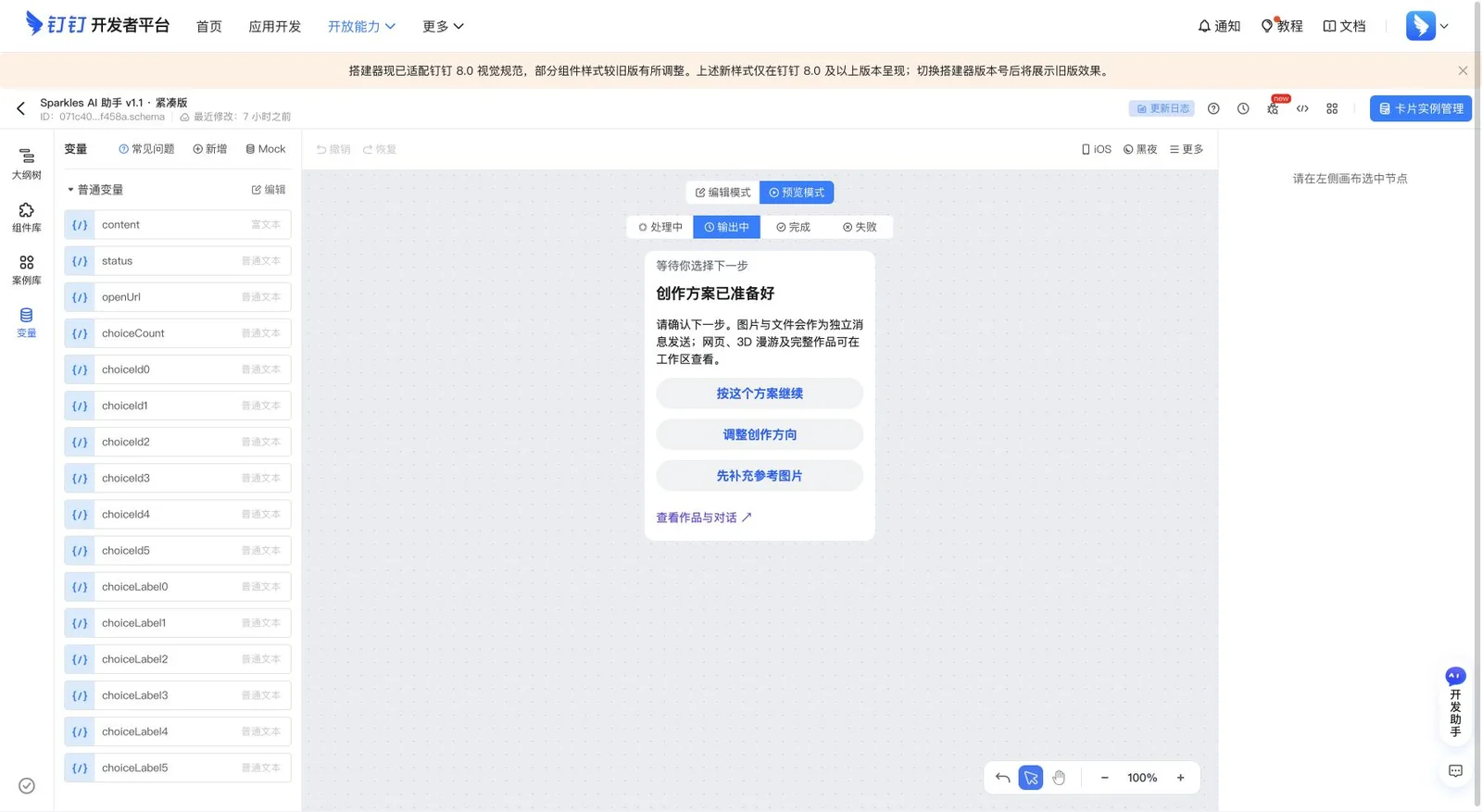
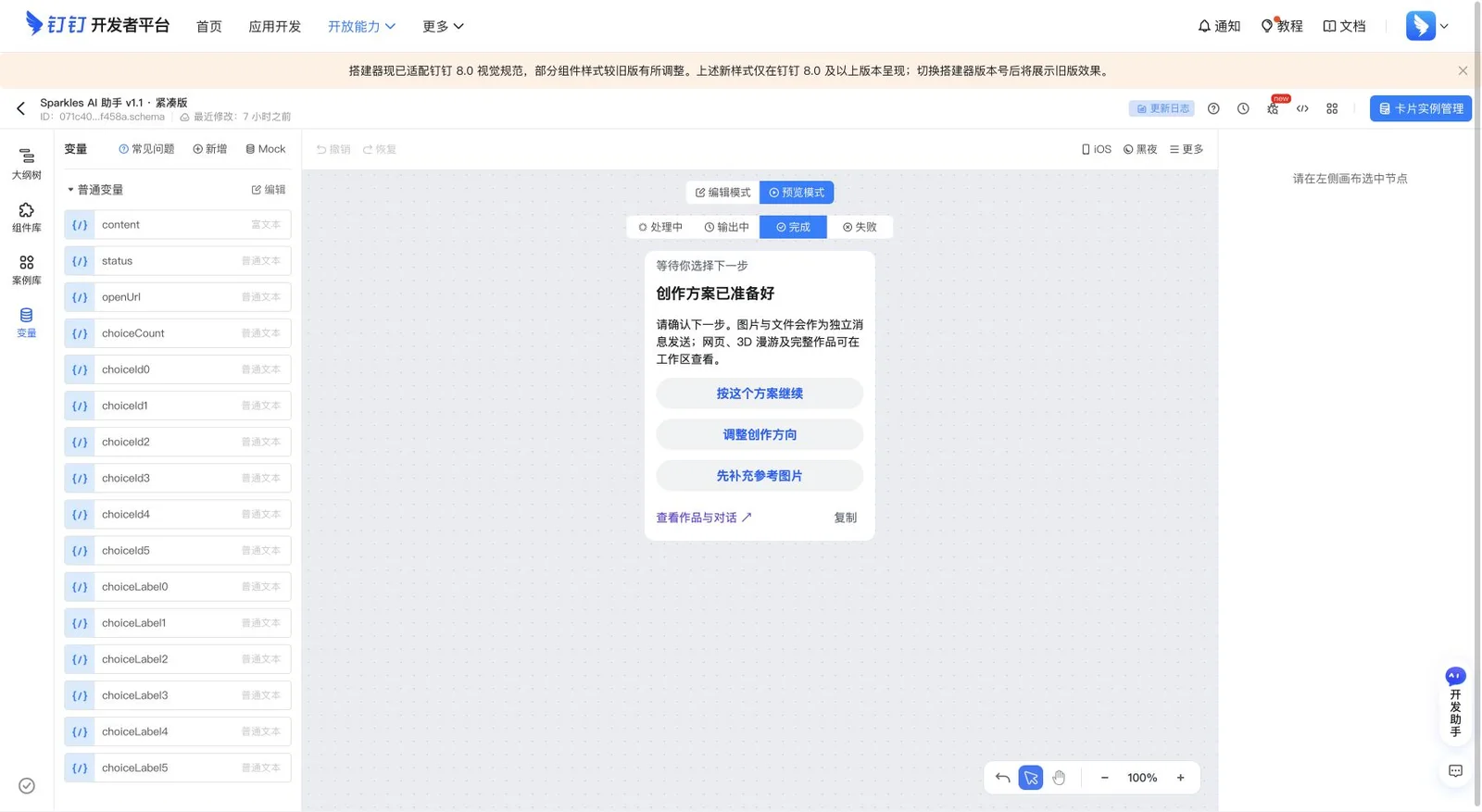
Use Preview mode to inspect wrapping, Chinese labels, choice buttons and the full-workspace link. Check Processing, Output, Complete and Failed in turn. A completed card must not keep a spinner, and a failed card must not leave unusable choices. The builder preview is evidence about the template, not proof that a live bot has delivered it.
Publish both the card and the application
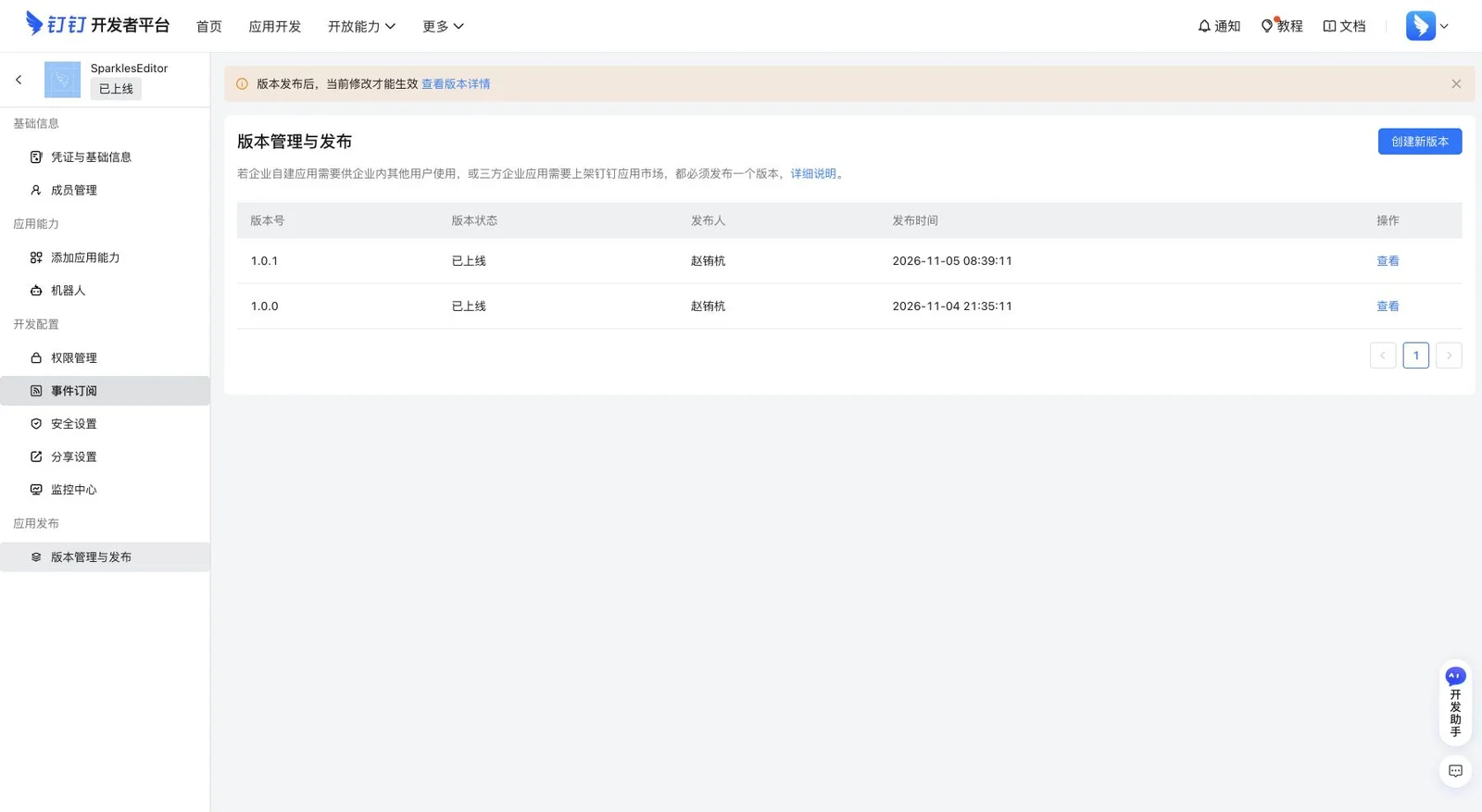
The card editor publishes the template ID. Version Management and Release publishes the application permissions and bot settings to enterprise members. The real version page shows versions 1.0.1 and 1.0.0 online. Copy your own template ID and enter it in Sparkles after publishing.
Return to Sparkles with four configuration fields
In the DingTalk channel settings, enter Client ID / AppKey, Client Secret / AppSecret, Robot Code and your card template ID. Submit secrets only through the dedicated form; the page clears them after submission. Pair the administrator in a private chat, send /status, then run a short text and attachment test. Groups remain disabled until you enable them explicitly.
Final acceptance checklist
Verify enabled permissions, card variables, all four previews, a published template ID, a published application version, /status, a short conversation, a button callback and one attachment. Start with mention-only and administrator-only access. If delivery is uncertain, inspect the existing task before submitting another paid request.
Sources and further reading
Sign in to connect Telegram or Lark. Models and creative tasks use your existing account Credits and permissions.